
Installation
Download
Downloading Horus Theme Files From ThemeForest
There are two ways you can install the Horus theme. You can choose to install it via FTP, which is what will be outlined in this article, or via WordPress. Before you can install Horus, please download the necessary theme files from ThemeForest first.
If this is your first time downloading the theme from ThemeForest, we recommend downloading the Full Theme Package to receive additional files such as exported sliders, child theme, documentation. If you’ve already downloaded the Full Packages, then you can just use the WordPress Installable File.
Step 1 – Login to your ThemeForest account and navigate to your Downloads tab and then locate your Horus theme purchase.
Step 2 – Click the Download button and choose to either download the Installable WordPress file only, which is just the WordPress installable file, or choose to download All Files & Documentation which is the full Horus theme package.
Install Horus Theme
1. Install via WordPress
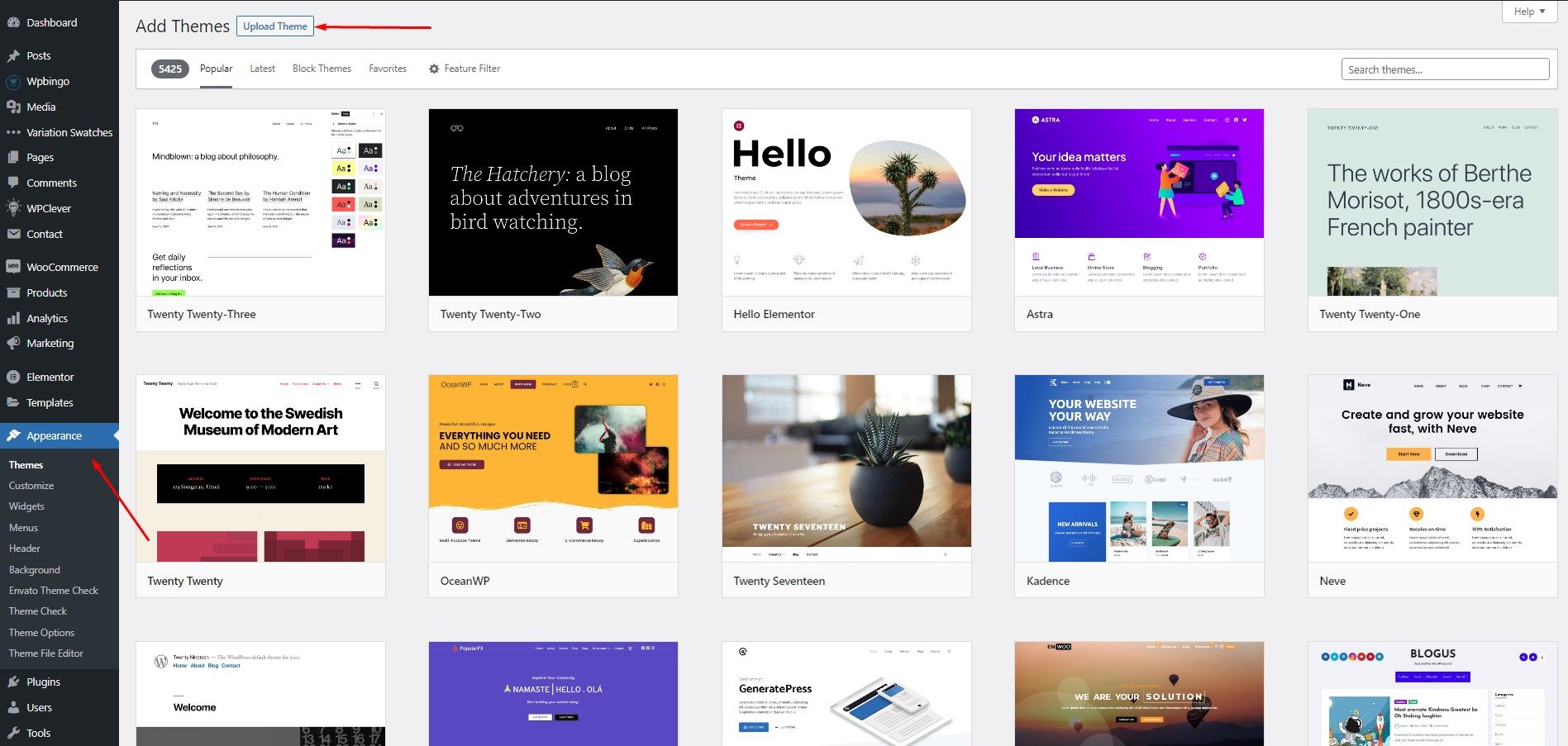
Log in into the admin area, navigate through Appearance > Themes > Add New > Upload Theme and select the .zip file you downloaded and finally click on Install Now
2. Install via FTP
If you get any fail when install theme by Wordpress install function, we recommend to use FTP.
Step 1 - If you have downloaded the Full Theme Package from ThemeForest, please unzip the package file to get the theme file Horus.zip. Unzip the Horus.zip file, you'll get a folder Horus.
Step 2 - Use a FTP client like FileZilla and upload the extracted folder to wp-content/themes folder on your host
Step 3 - Log in to your WordPress Dashboard and navigate to Appearance > Themes and clicking the Activate button of the Horus theme.
Install Plugins
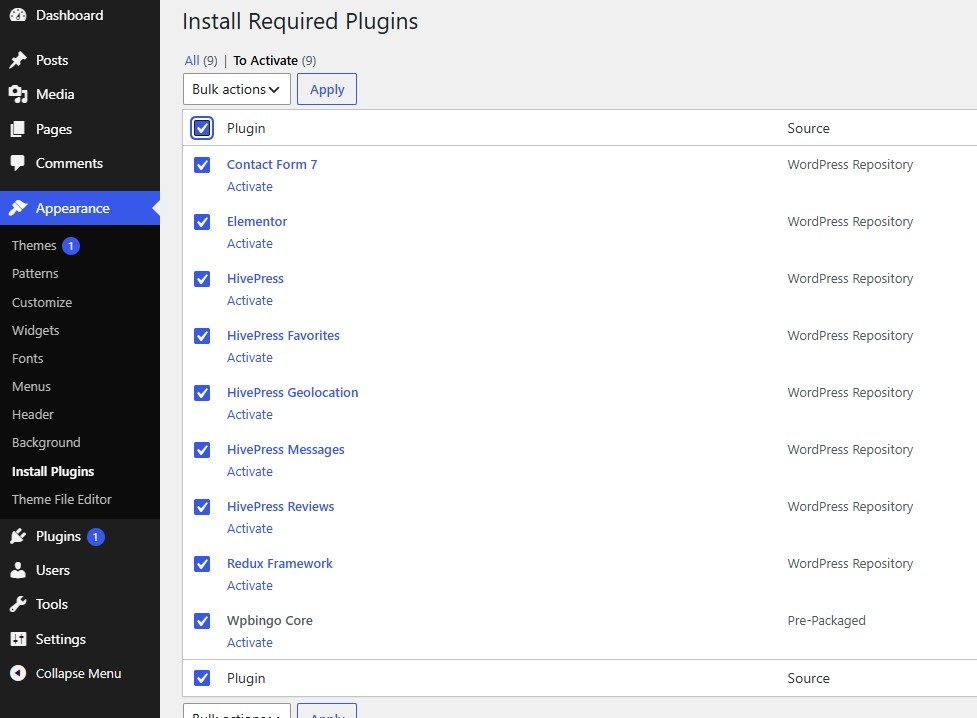
Go to Appearance > Install Plugins
You will see the plugins that need to be installed
Import Demo Content
Before installing Demo Content, please install all required plugins, see the list of plugins on: Appearance > Install Plugins (if its not visible, then you have all the required plugins installed). There are 2 ways to import the demo content:
Theme Requirements
Minimum server configuration
- PHP version - 7.4 and higher
- MySQL version - 5.6 or higher
- memory_limit – 512M
- max_execution_time – 600
- max_input_time – 600
- upload_max_filesize – 40M
Recommended server configuration
- PHP version - 8.0
- MySQL version - 5.6 or higher
- memory_limit – 512M
- max_execution_time – 40000
- max_input_time – 6000
- upload_max_filesize – 40M
I. One-click Demo Import
You can quickly import all sample data in Wpbingo Framework > Import Demo Data.
When you access the Horus Demo Content Importer, you’ll be presented with the option of 2 example sites to choose from. We provide options if you don't want to import full demo Choose the one you like and click 'import' button. It may take a few minutes to finish the process

II. Using WordPress Tool
1. Login to your WordPress admin (/wp-admin) and go to Tools > Import and choose the WordPress system from the list to import.
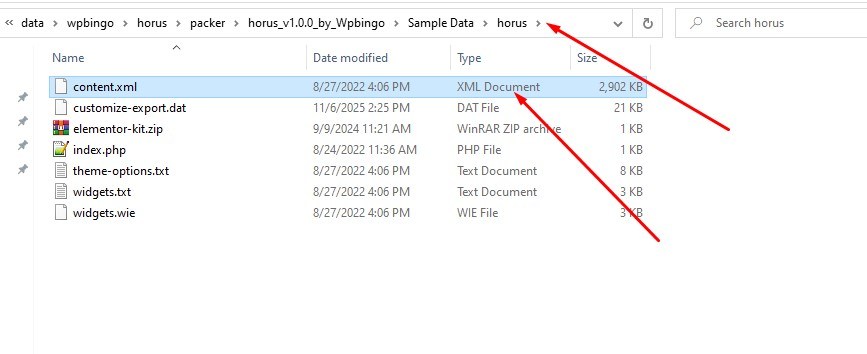
2. You will see a file chooser input, there you upload the latest version XML file that can be found on Sample Data/sample
3. Click Run & Import
Import Widgets
1. Please install the Widgets Importer & Exporter plugin
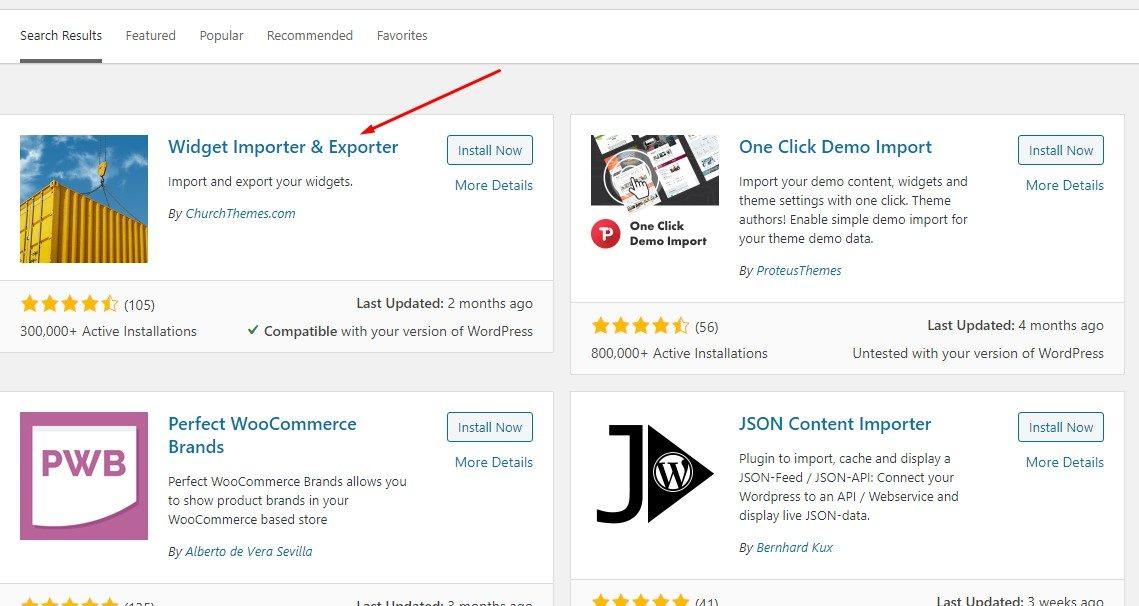
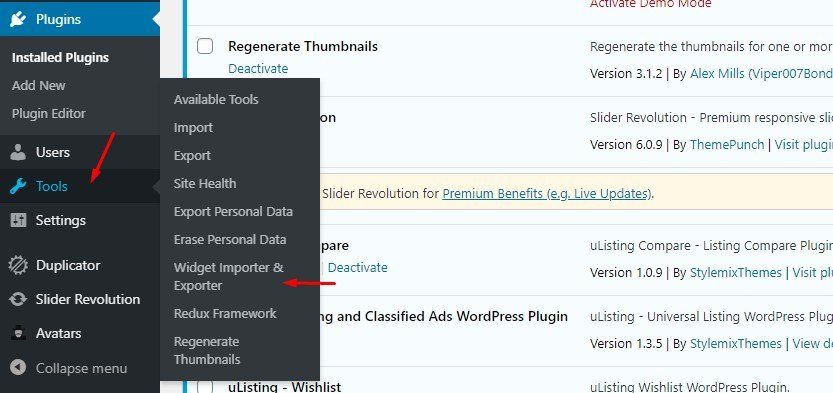
2. Access to the management of import & export widgets
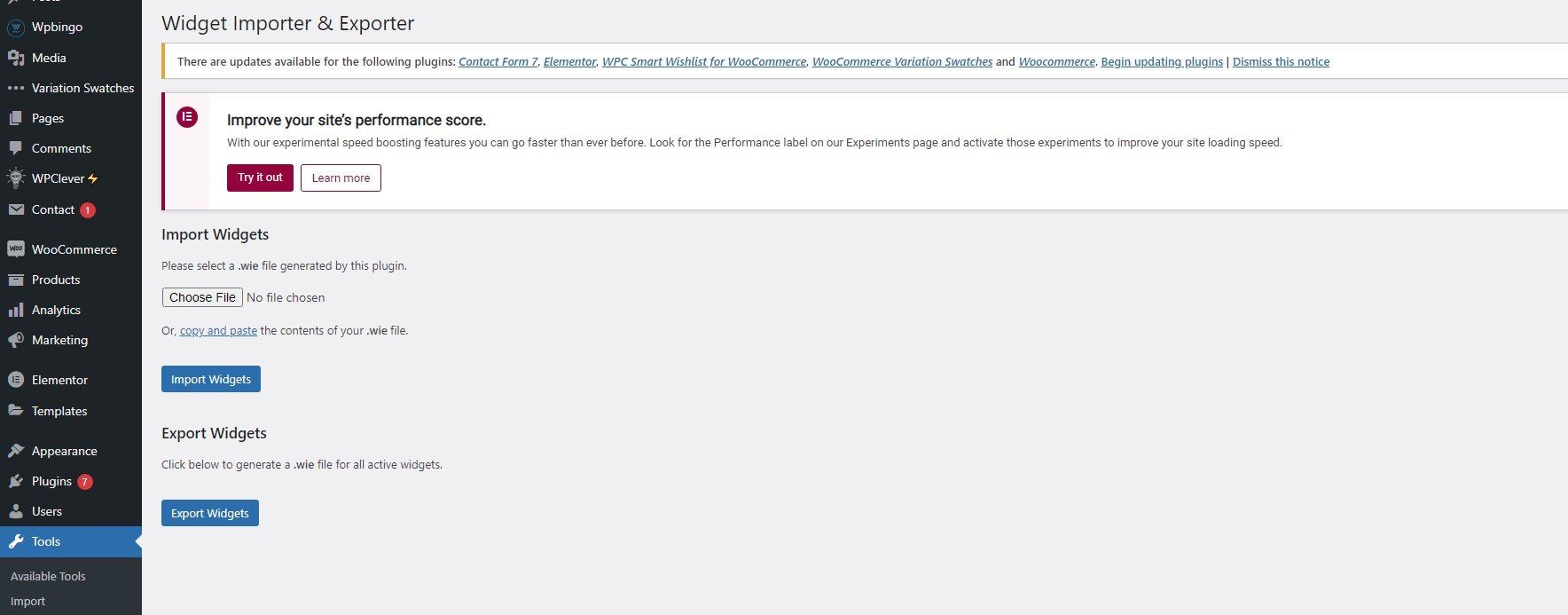
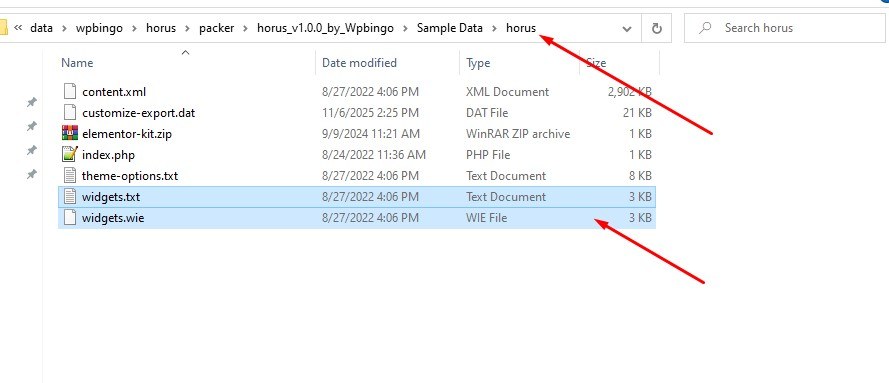
3. Select the widget.wie file from the sample directory
4. Click Import Widgets
Import Customize
If you import theme using WordPress Tool. You need to import Customize
1. Please install the Customizer Export/Import plugin
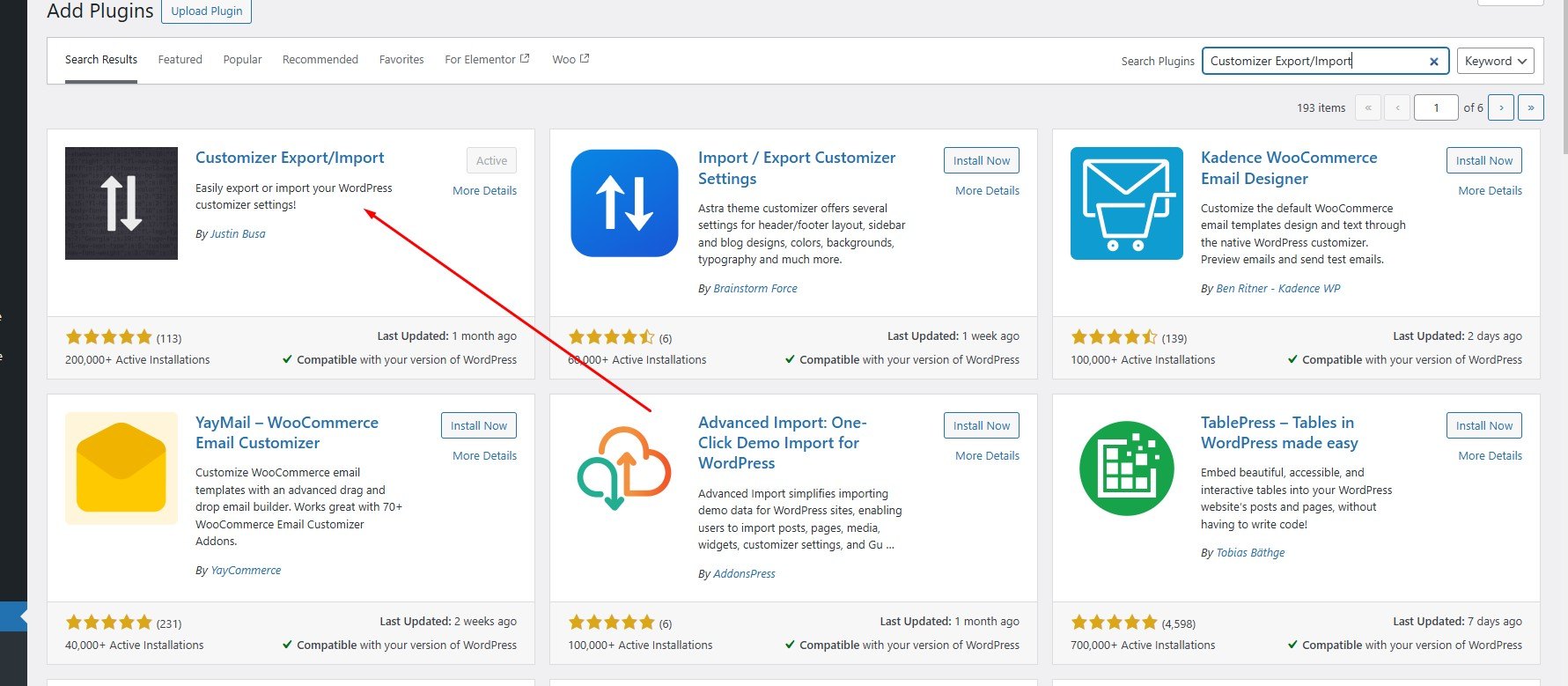
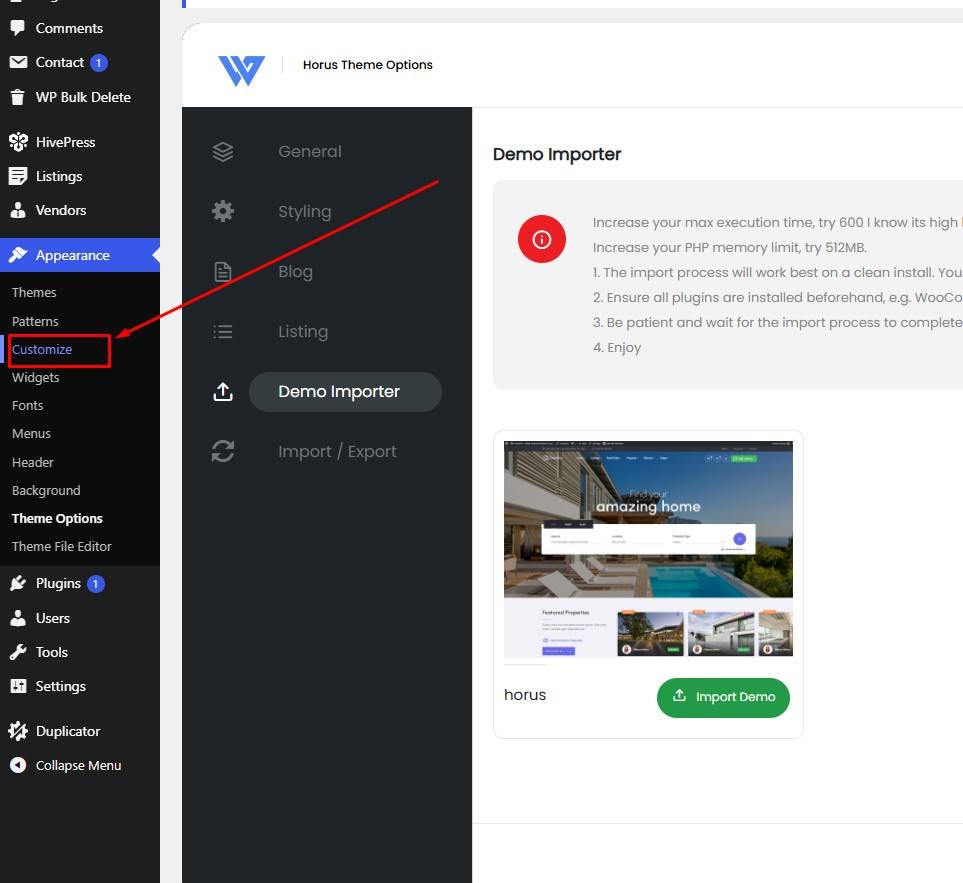
2 Navigate to Appearance > Customize
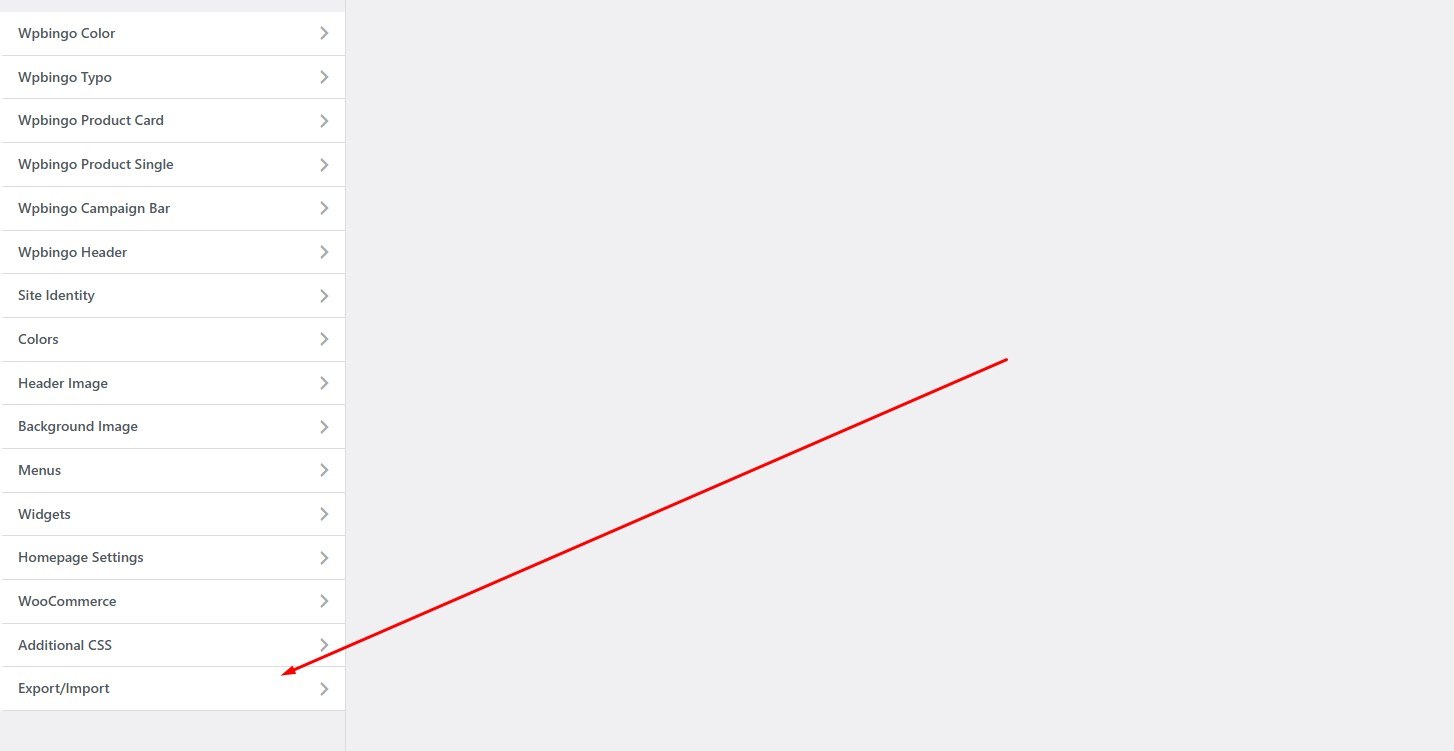
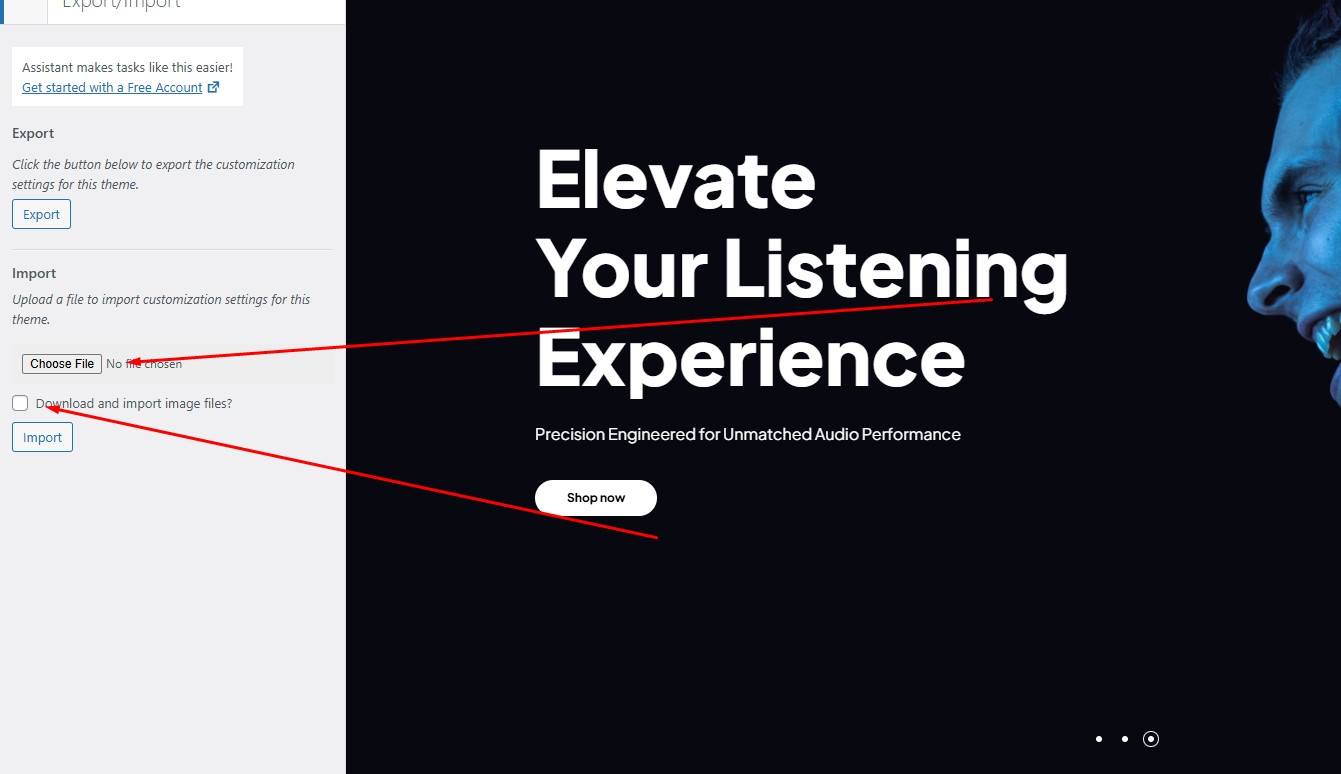
3. Select the customize-export.dat file from the sample directory
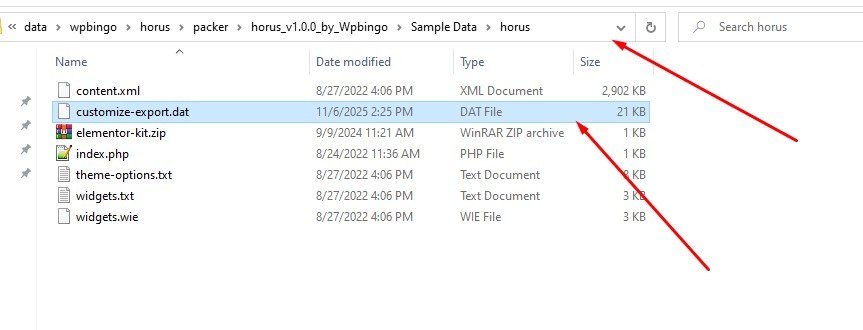
4. Click Import
Import Theme Options
1. Access to the management of import & export Theme Options
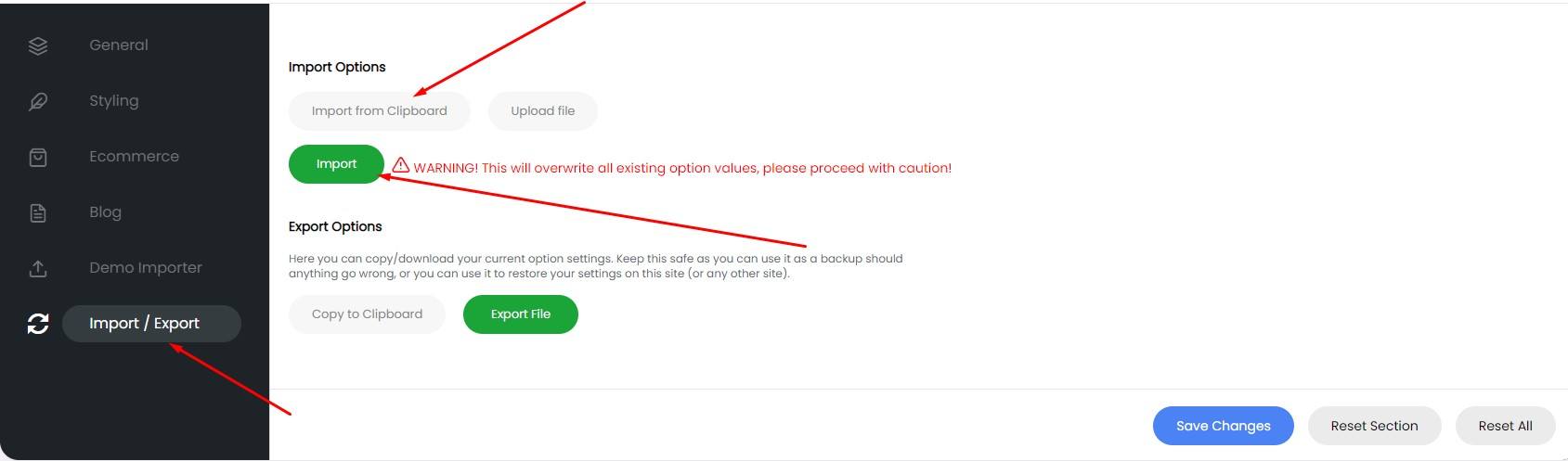
2. Select the theme-options.txt file from the sample directory
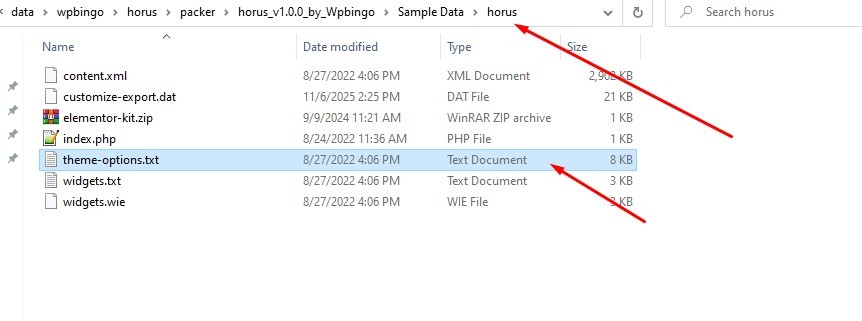
3. Click Import
Import Elementor Settings
1. Go to Elementor > tools. Then select Import a Template Kit
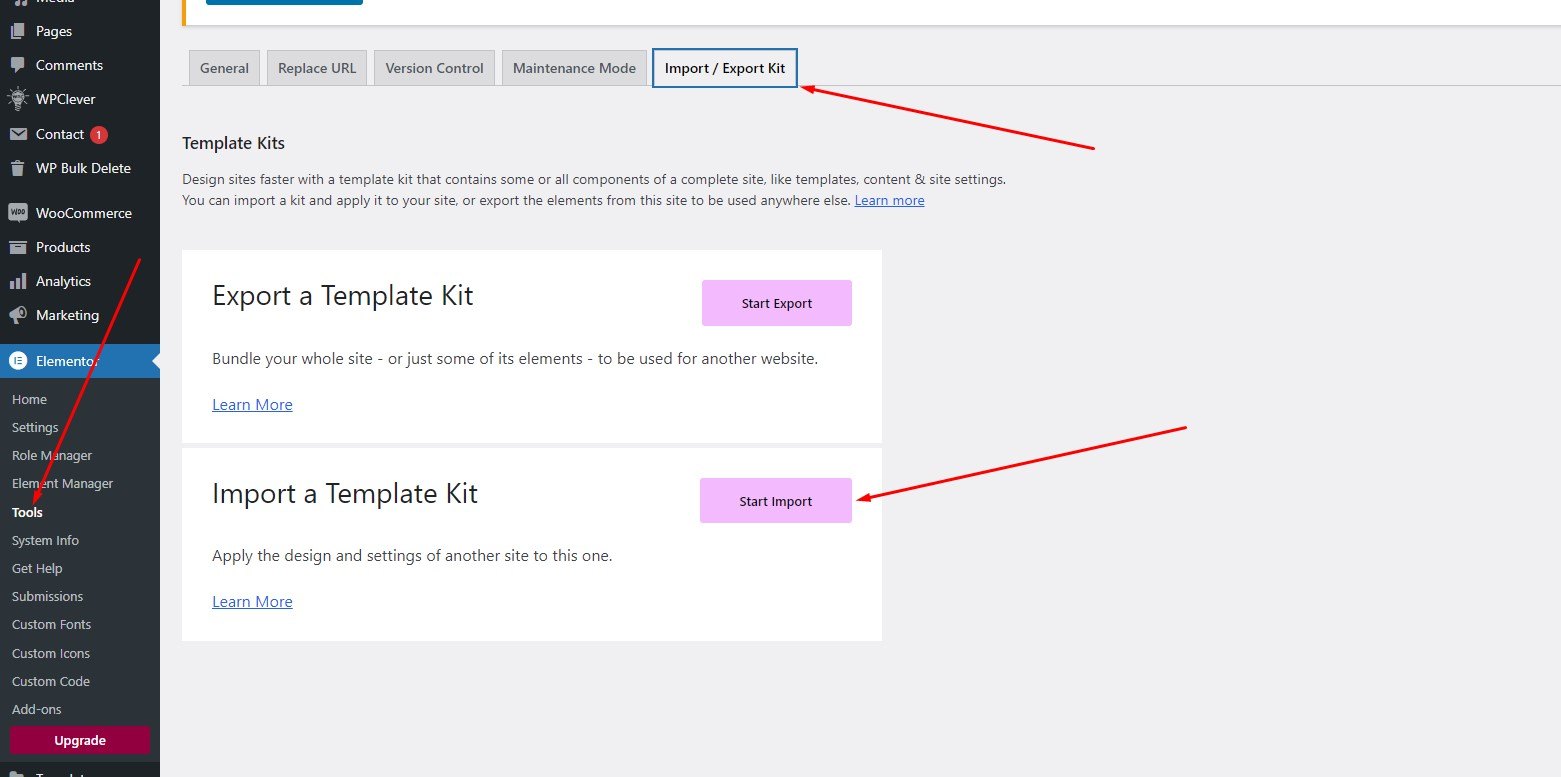
2. Select the elementor-kit.zip file from the sample directory
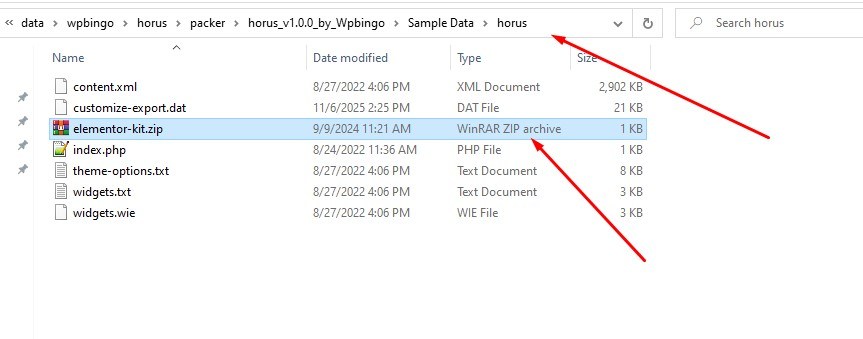
3. Click Import
Replace and regenerate URL
1. Go to Elementor > tools
2. Click Replace URL.
3. Under Update Site Address (URL), enter the old url and new url.
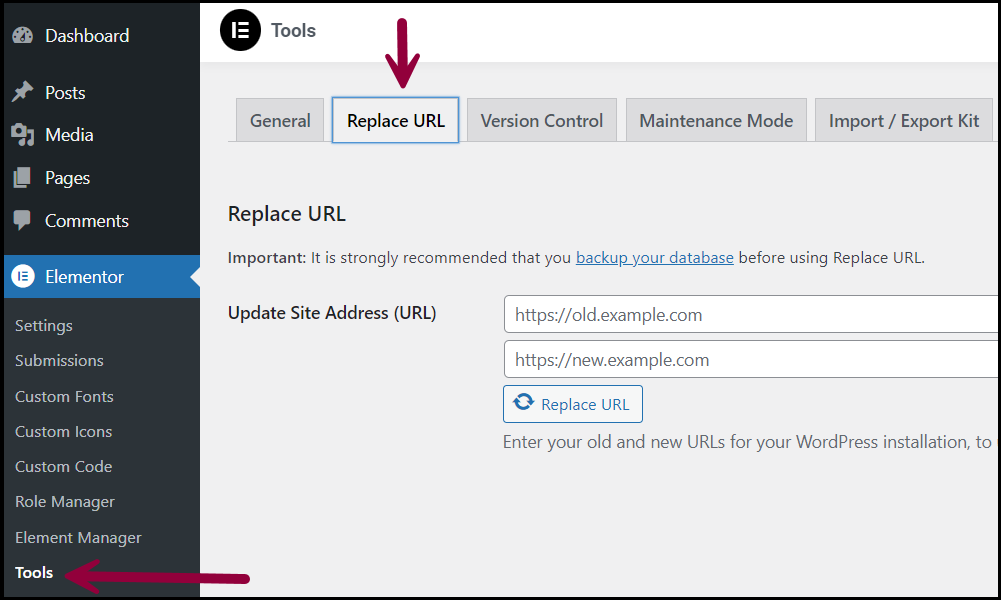
4. Click Replace URL.
5. Go to General.
6. Click Regenerate Files & Data.
7. Click Save Changes.
Config Home Page
Please visit Settings > Reading

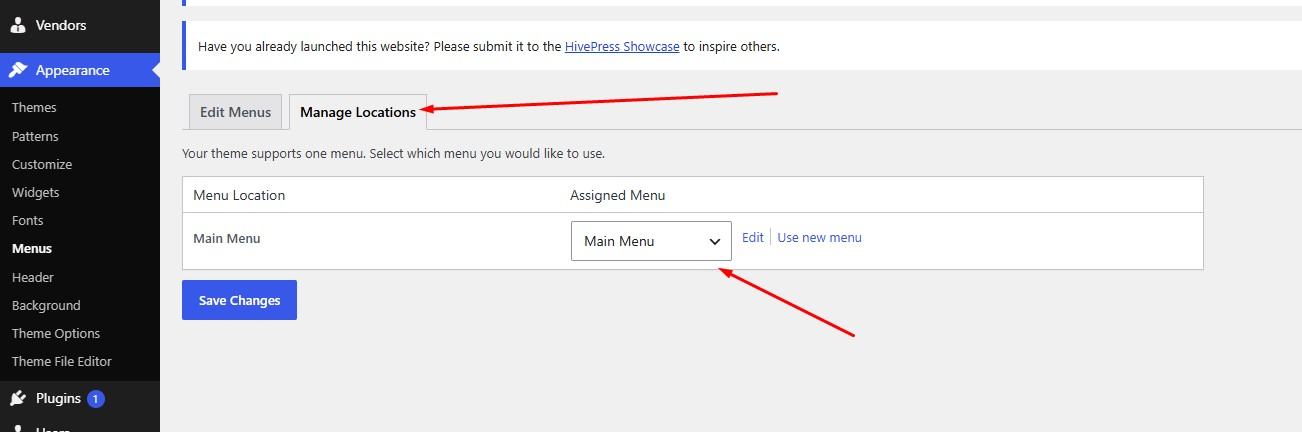
Config Menu
Please visit Appearance > Menu
You need to configure the menu with its respective functions
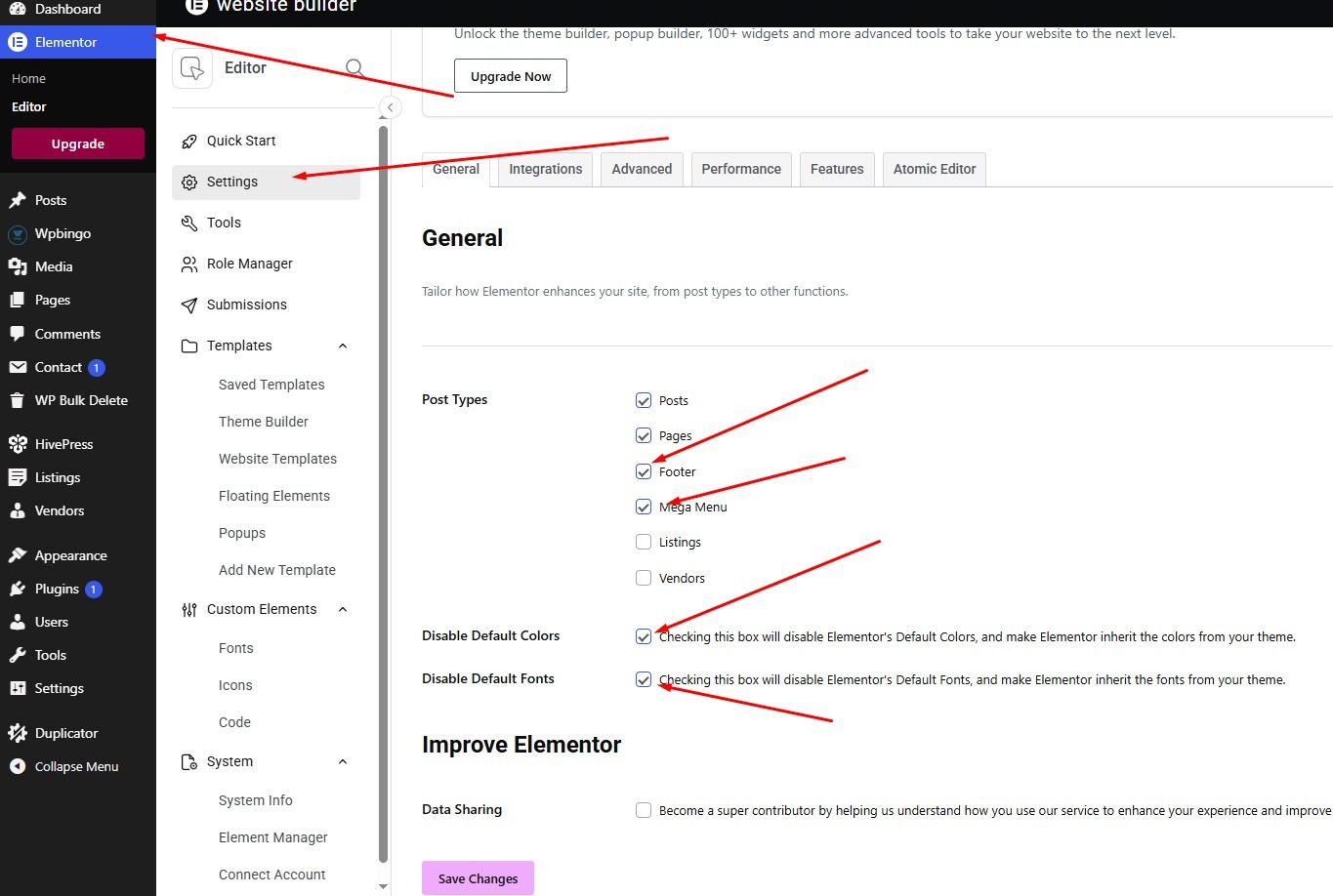
Elementor Config
1. Disable Default Colors and Disable Default FontsDisable default colors and default fonts by going to Elementor > Settings and placing a check in the boxes next to Disable Default Colors and Disable Default Fonts.
From any Elementor page or post editor, click the hamburger menu in the upper left corner of the Widget Panel, then navigate to Site Settings > Settings > Layout.

Wpbingo Framework
Please install the 3 plugin Elementor, WooCommerce and Redux Framework before installing wpbingo.
I. Page
You can separately configure the header, footer, logo for the Page.The configuration here will take precedence over the configuration in the theme options.If you want to use the default value in theme options: You can choose the "default" value for the header, vertical, footer and remove logo.
1. Edit Page you want to configure.

And the configuration is here:
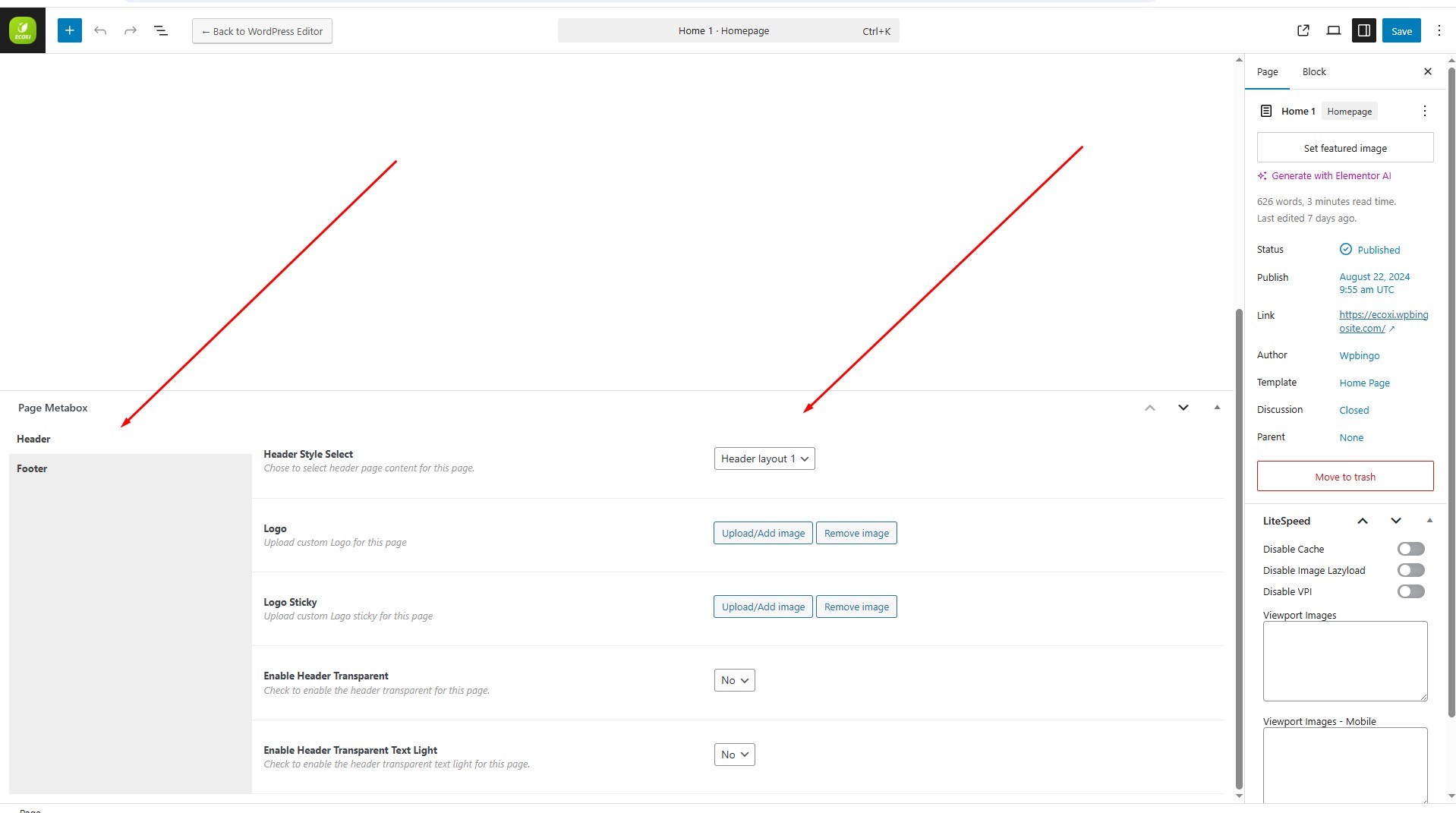
II. Color
You can customize the colors in the theme by following step-by-step guide.
Step 1: Navigate to Appearance > Customize.
Step 2: Click Wpbingo Color and begin making precise color customizations within the theme.
III. Typo
You can customize the font size, font family in the theme by following step-by-step guide.
Step 1: Navigate to Appearance > Customize
Step 2: Click Wpbingo Typo and begin making precise font size, font family customizations within the theme.
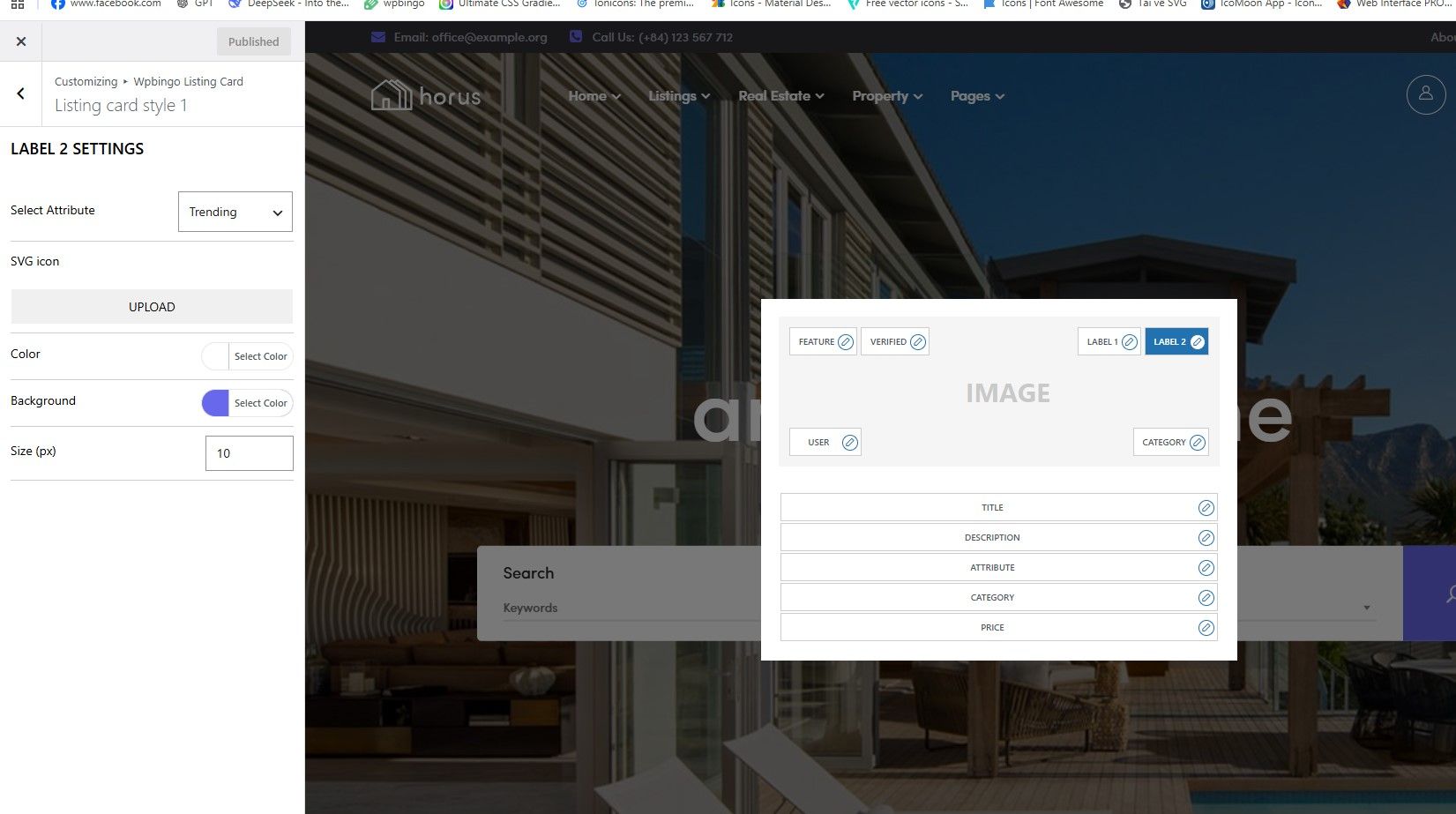
IV. Listing Card
Step 1: Navigate to Appearance > Customize
Step 2: Click Wpbingo Listing Card
You can customize the font size, color, and select the attributes you've created for the listing to display for the label (hot, trending).
V. Header
You can easily customize logo, colors, padding, information and perform drag and drop actions for header widgets by following step by step instructions.
Step 1: Navigate to Appearance > Customize
Step 2: Click Wpbingo Header and begin making precise color, padding, information and perform drag-and-drop customizations within the header.
If the page does not change as configured here, then the page is being configured separately.
You can separately configure the header, footer, logo for the Page.The configuration here will take precedence over the configuration in the theme options.If you want to use the default value in theme options: You can choose the "default" value for the header, vertical, footer and remove logo.
1. Edit Page you want to configure.
And the configuration is here:
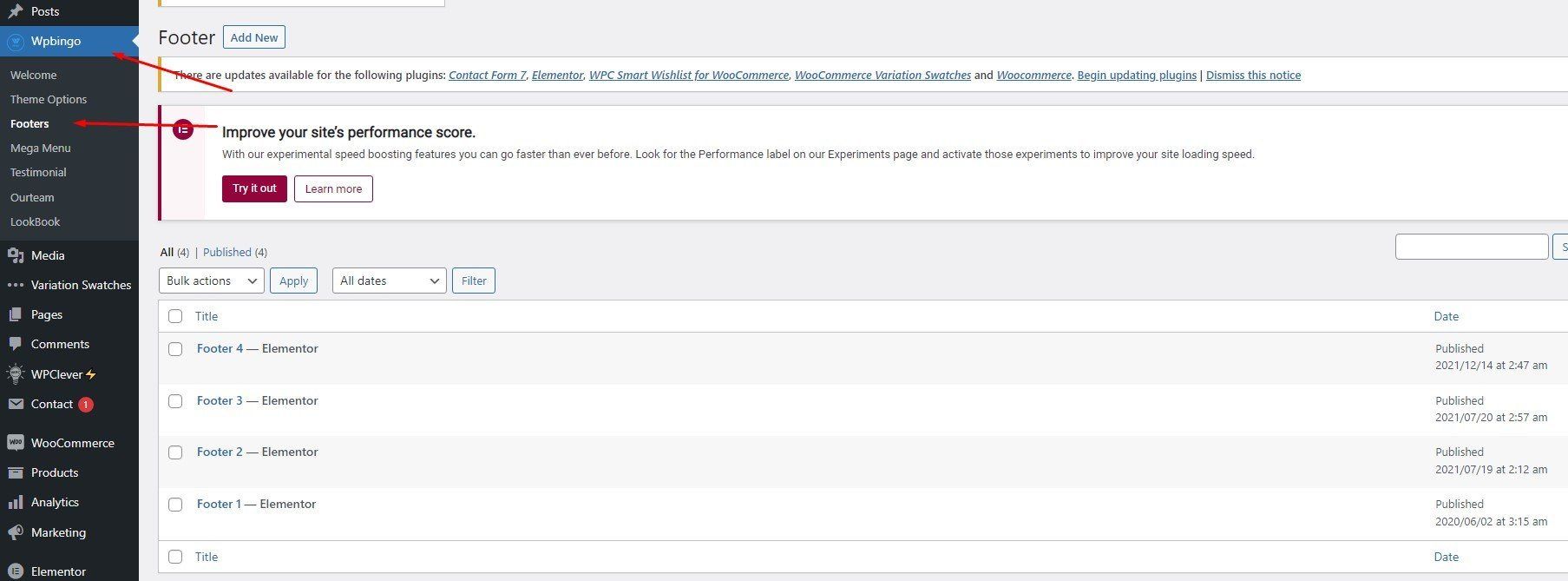
VI. Footer
1. Allows editing footer with elementor
2. Wpbingo > Footers
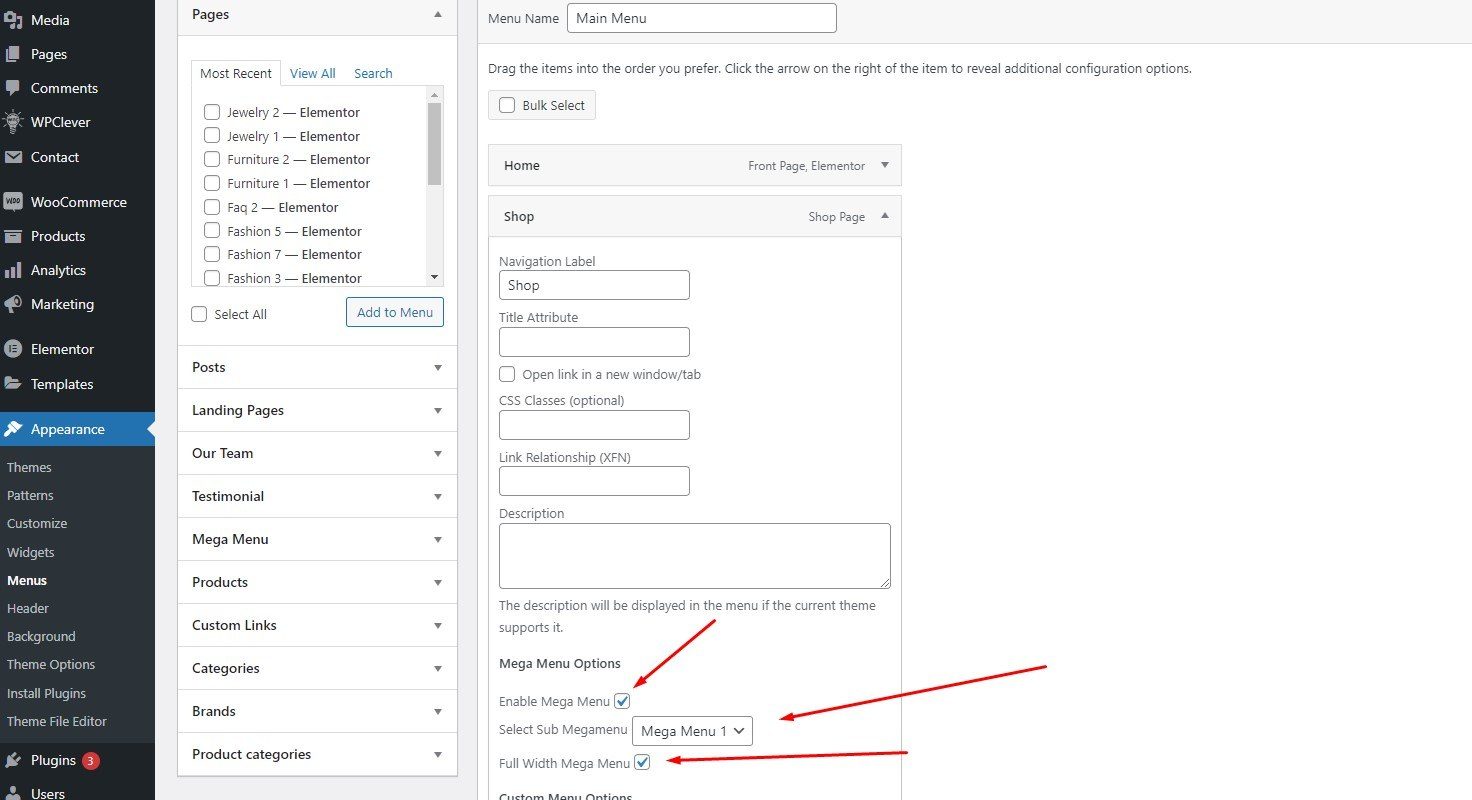
VII. Mega Menu
1. Allows editing mega menu by elementor
2. Wpbingo > Mega Menu
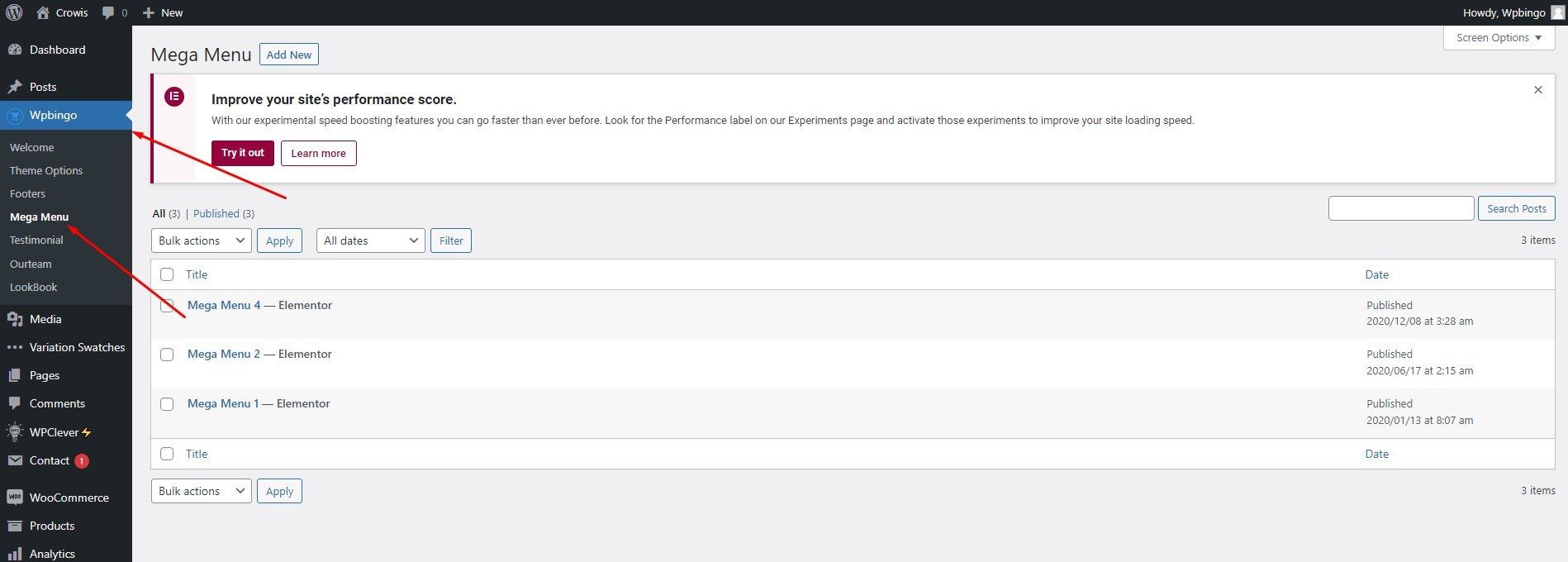
3. Wpbingo > Mega Menu > Edit with elementor
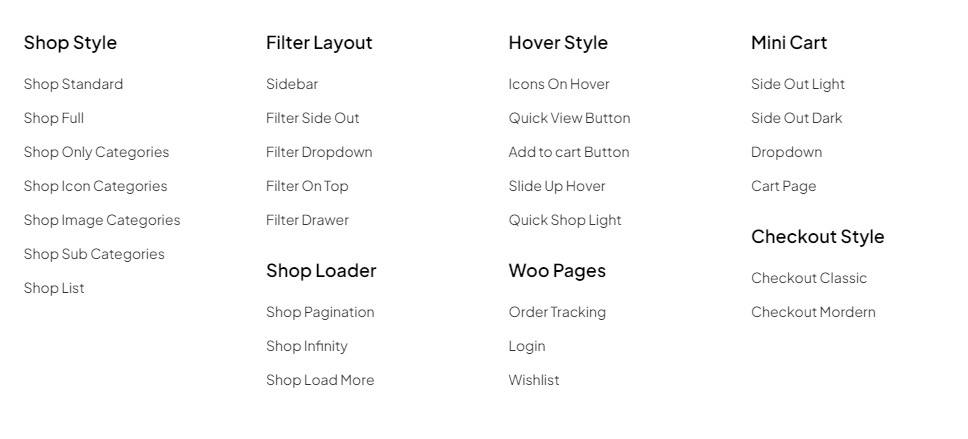
4. Select megamenu to display here
Theme Options
After the installation is completed, you can customize your store.
Customizing your store lets you add functionality or change your store's appearance without switching themes.
General
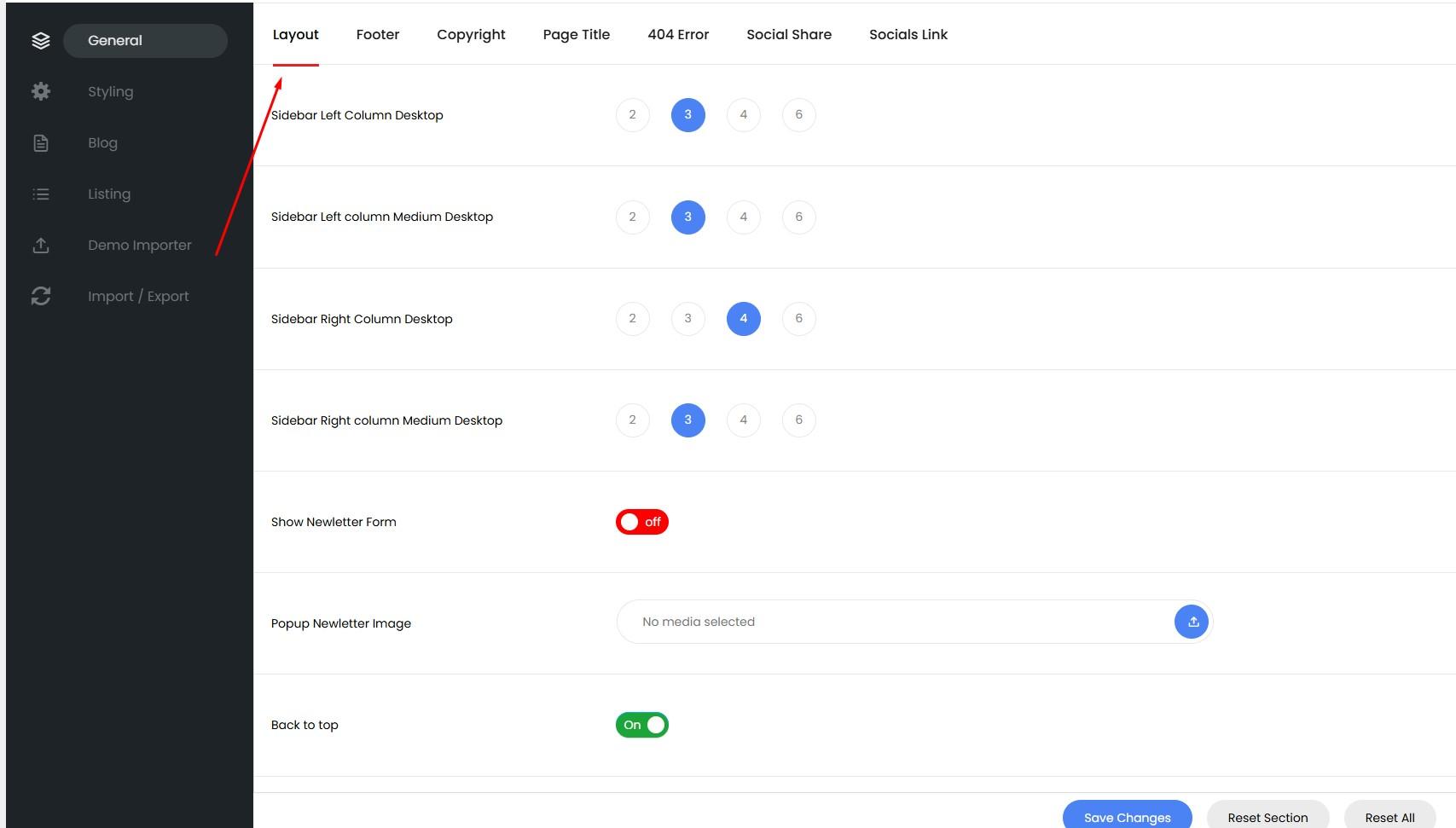
I. Layout
You can toggle and configure Newsletter Form, Sign In Image, Back to top, Come Back Alert, Right to Left, Time Nofication here
Wpbingo > Theme Options > Layout
II. Footer
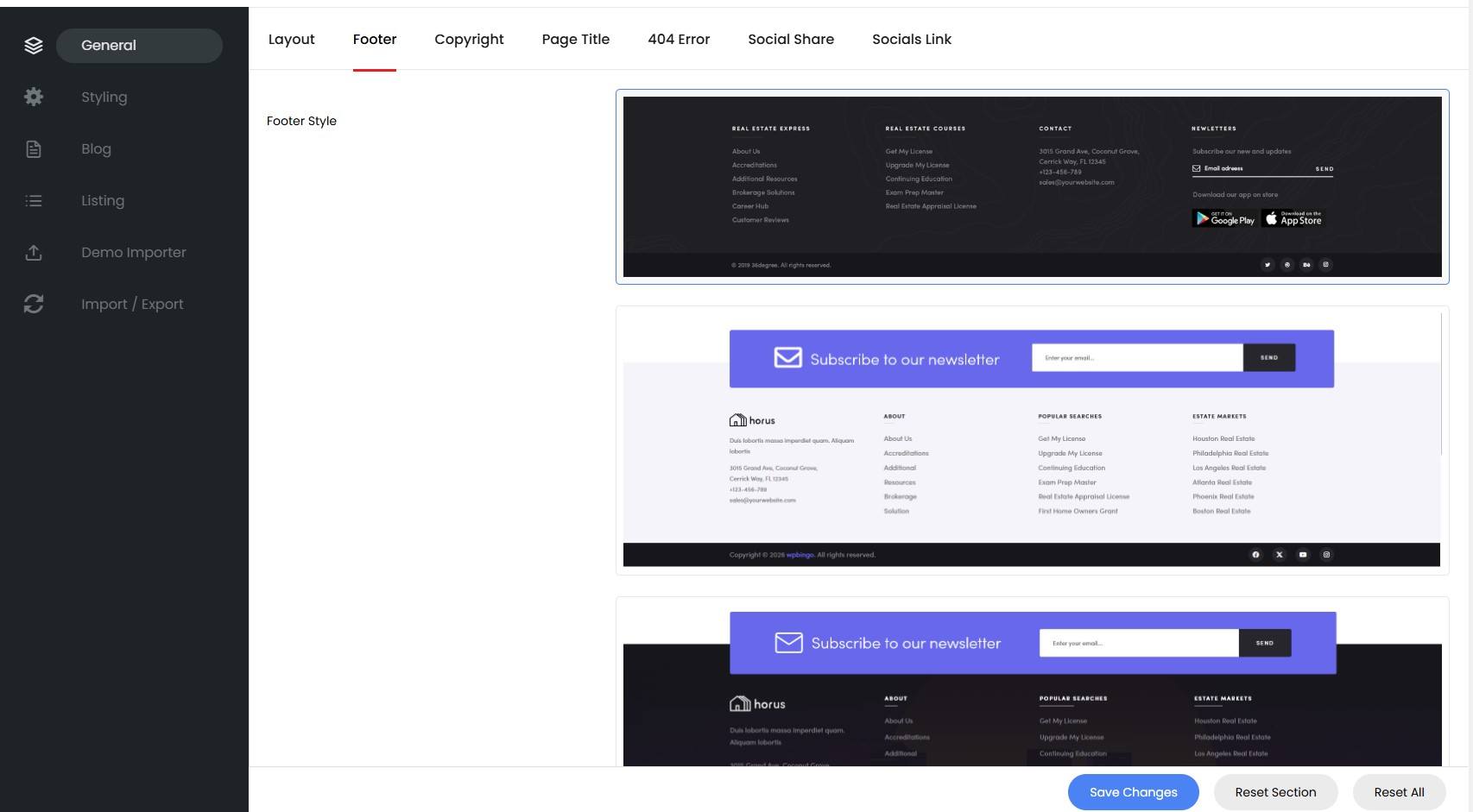
To change the footer:
1. Access to theme options Wpbingo>Theme Options>Footer
2. Click the section Footer Style
3. Clicking on any of the footer to choose and hit Save Changes
If the page does not change as configured here, then the page is being configured separately.
You can separately configure the header, footer, logo for the Page.The configuration here will take precedence over the configuration in the theme options.If you want to use the default value in theme options: You can choose the "default" value for the header, vertical, footer and remove logo.
1. Edit Page you want to configure.
And the configuration is here:
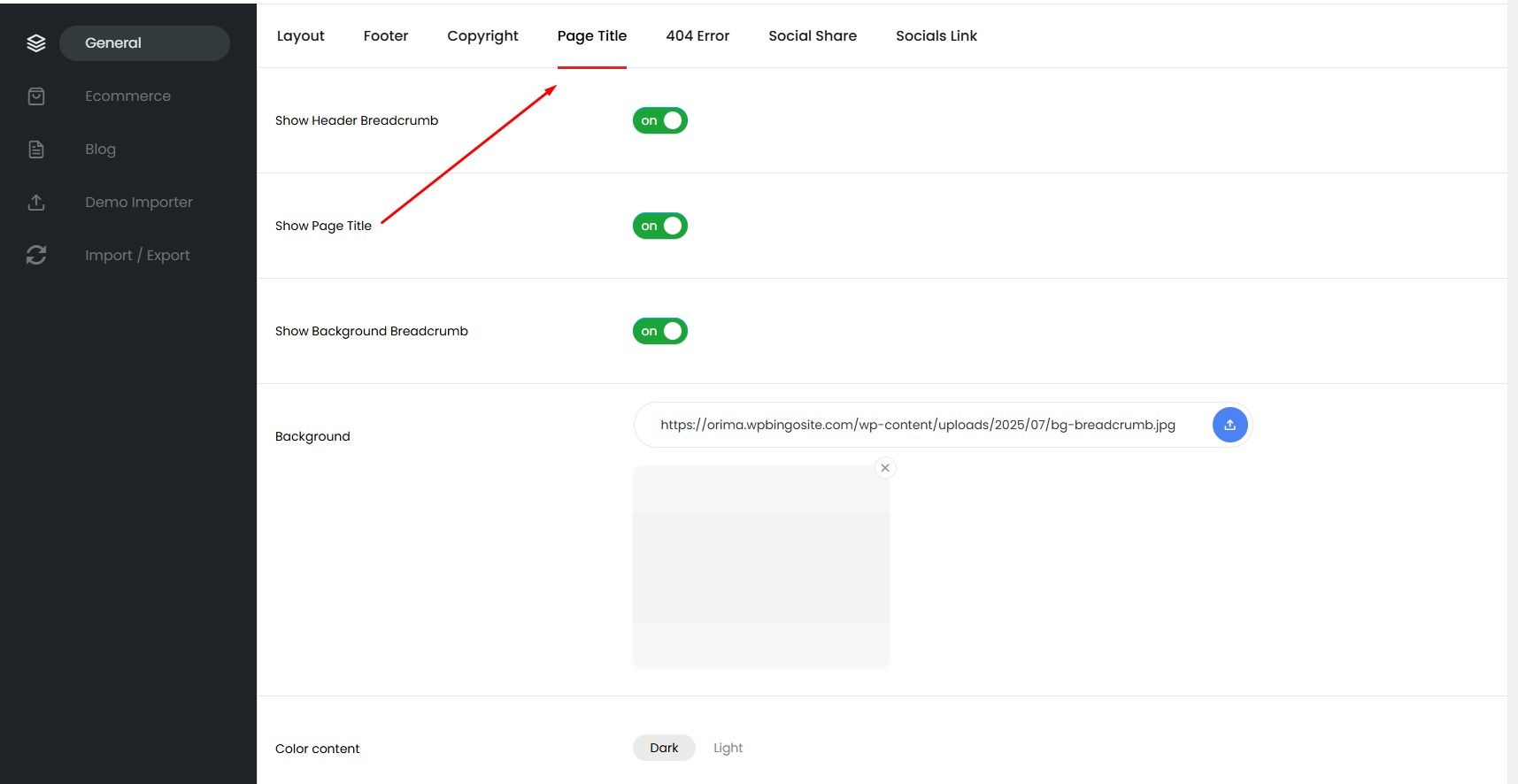
III. Page Title
To change Background Breadcrumb
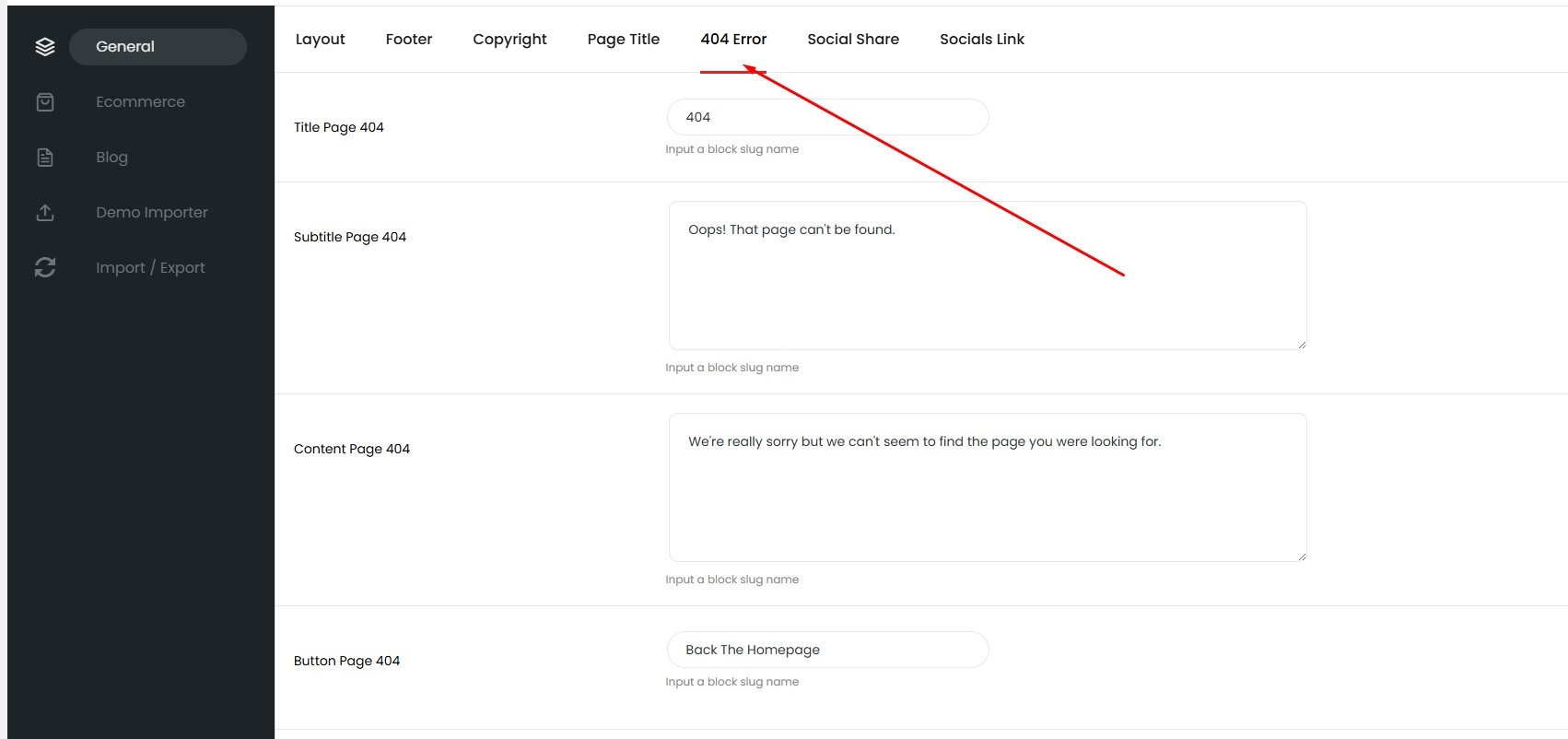
IV. Page 404
You can change the information of the 404 page here
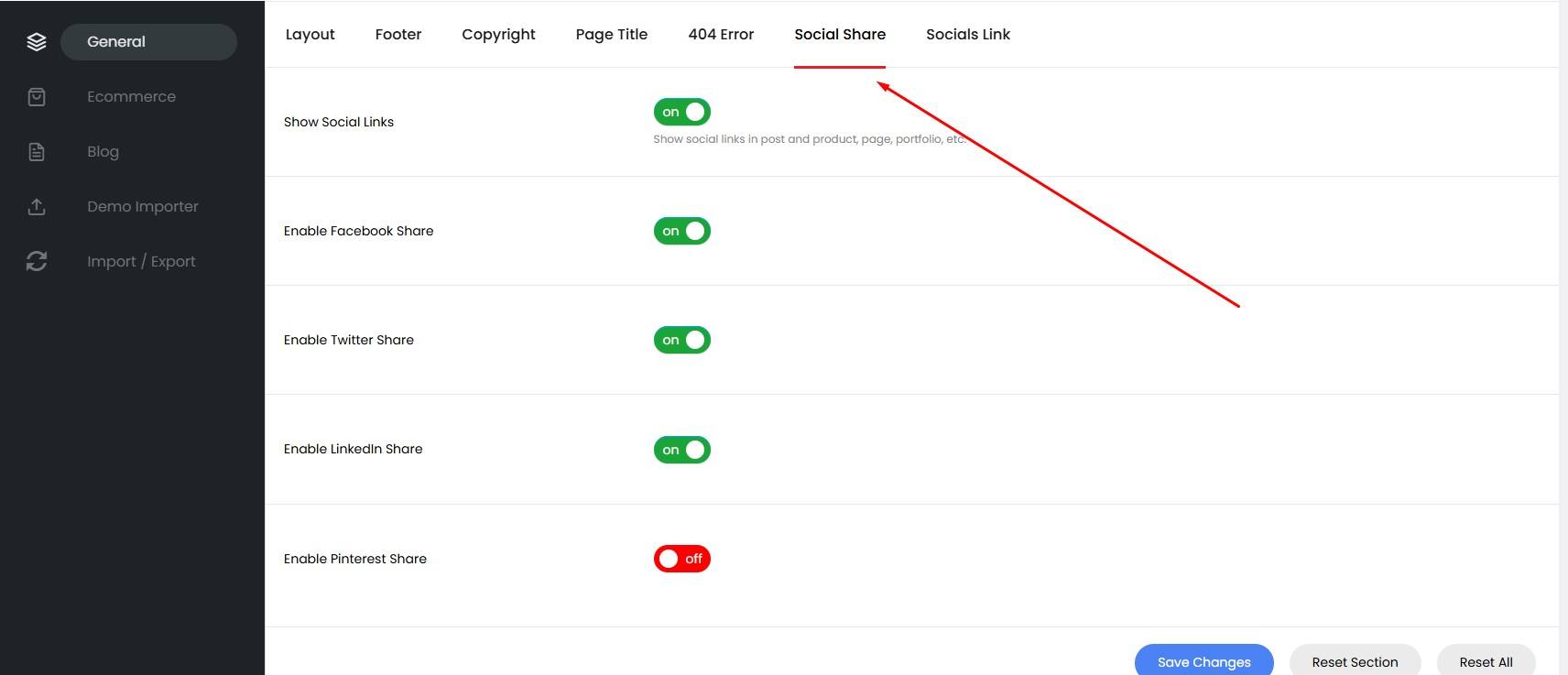
V. Social Share
You can manage your shareable social networks from the website here
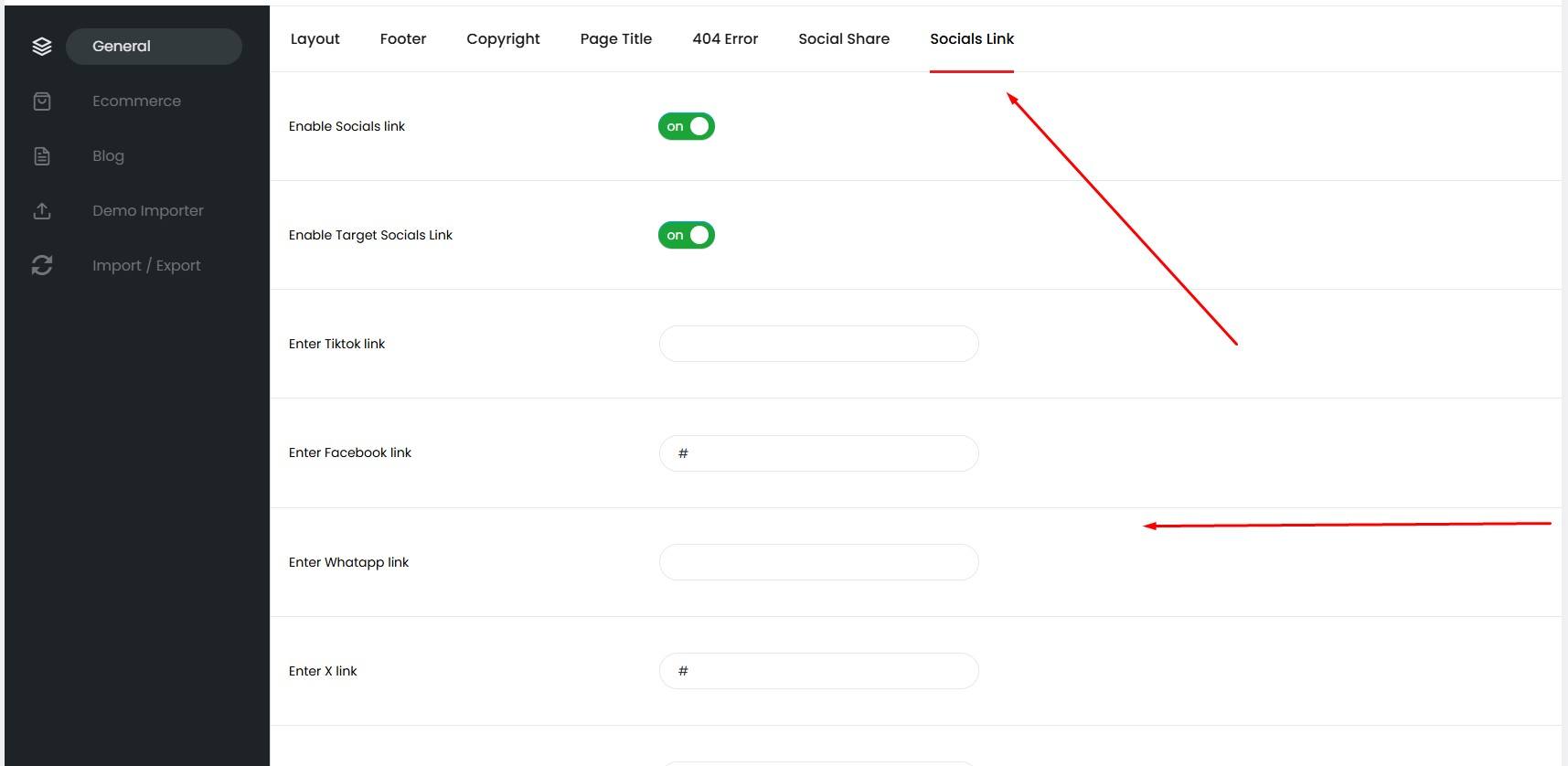
VI. Social Link
You can manage your website's social media links here
Listing
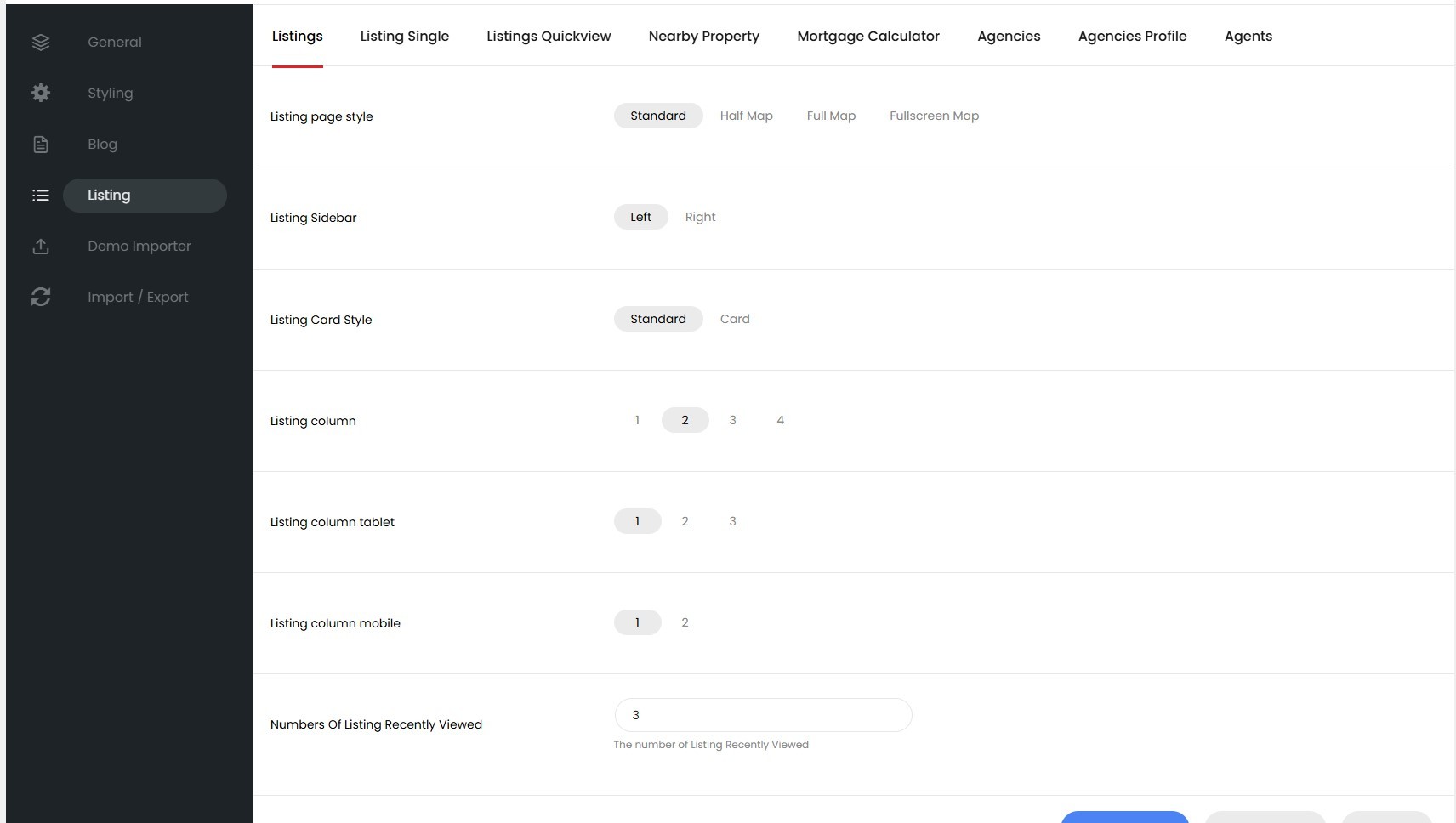
I. Listings
Go to Theme Options > Listing Click the section Listings
You can configure and manage the functions on the listing page here.
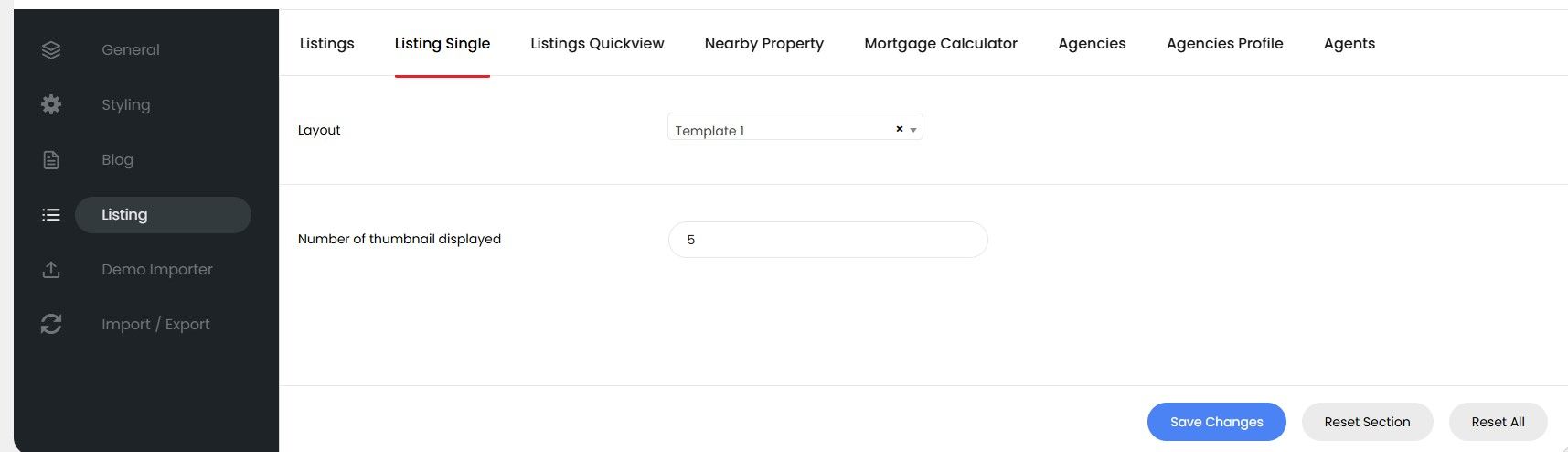
II. Listing Single
Go to Theme Options > Listing Click the section Listing Single
You can configure and manage the functions on the single listing page here.
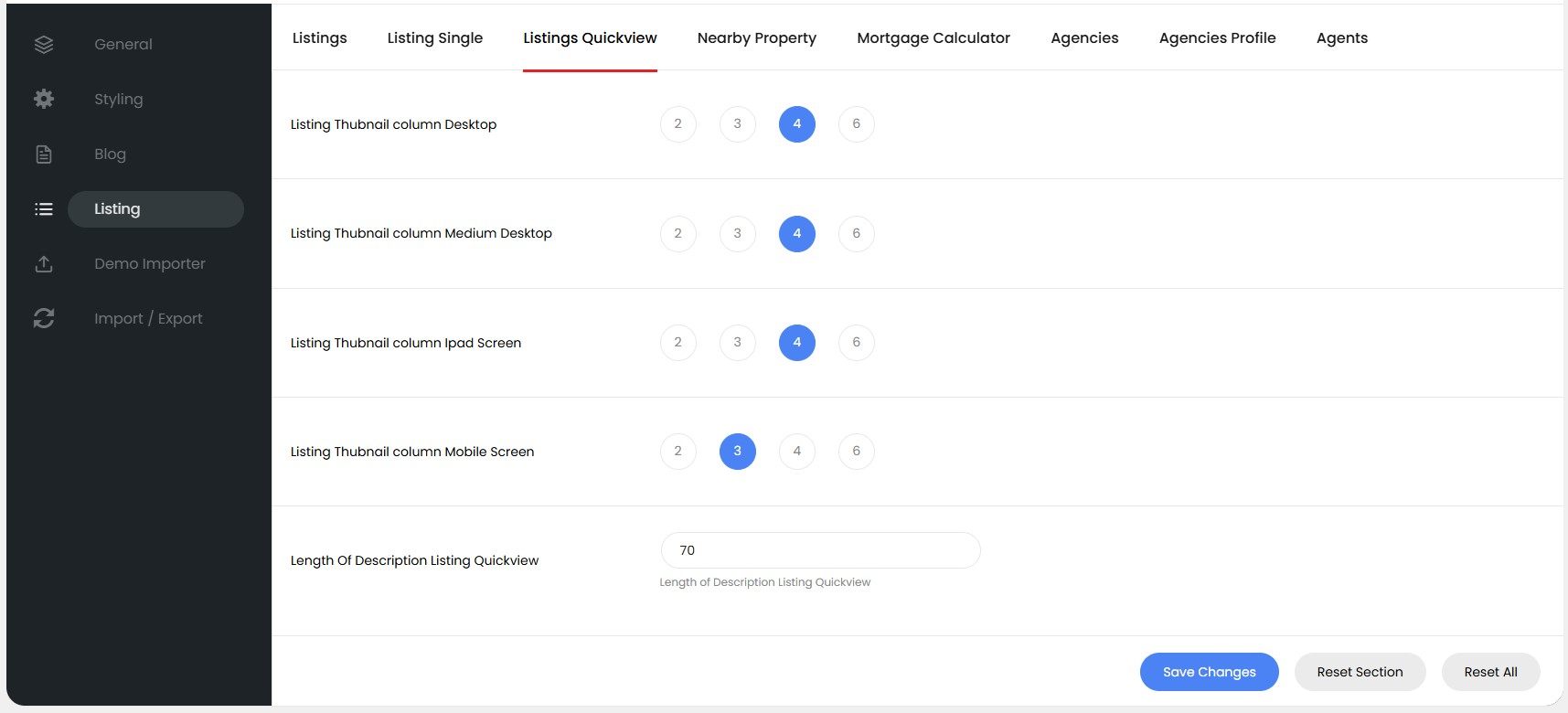
III. Listings Quickview
Go to Theme Options > Listing Click the section Listings Quickview
You can configure and manage the functions on the Listings Quickview here.
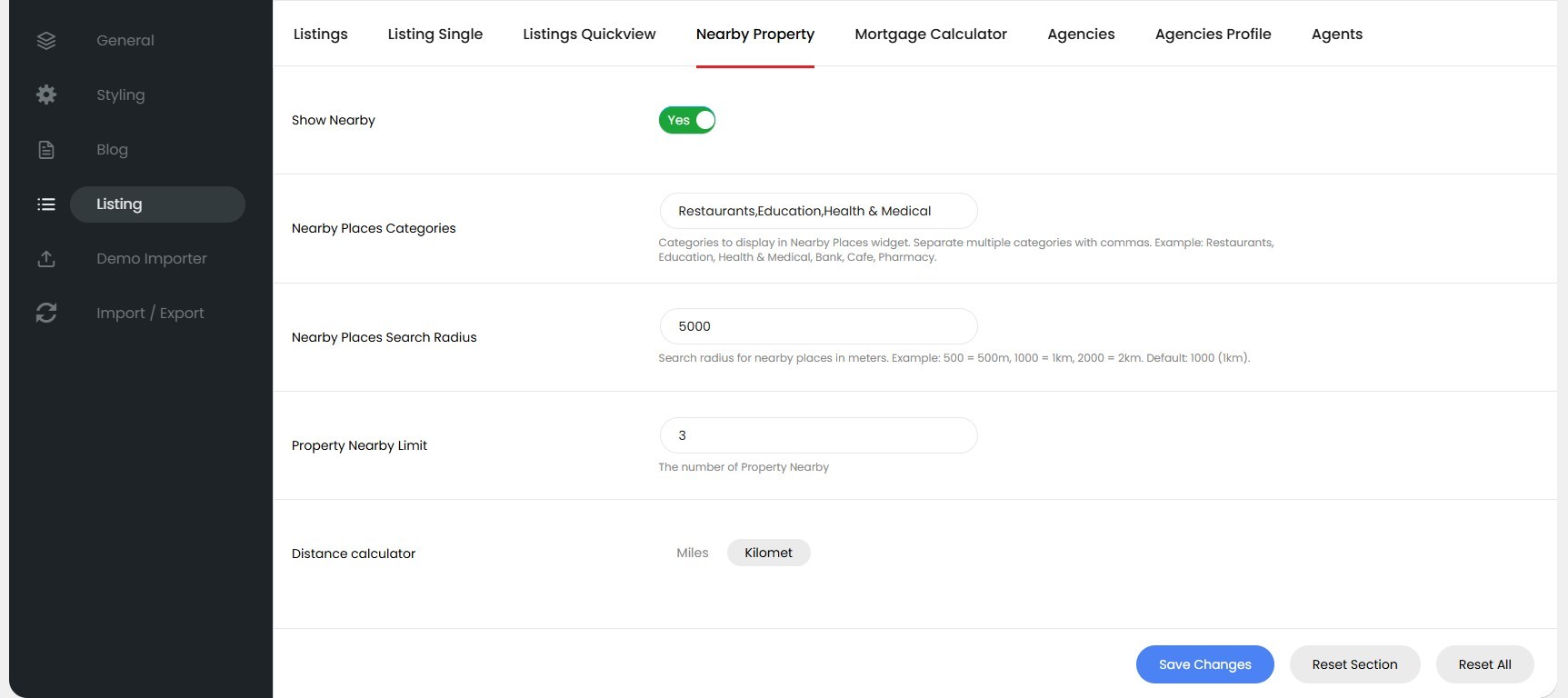
IV. Nearby Property
Go to Theme Options > Listing Click the section Nearby Property
You can configure the Nearby Property feature on the single listing page here.
Front End

V. Mortgage Calculator
Go to Theme Options > Listing Click the section Mortgage Calculator
You can configure the Mortgage Calculator feature on the single listing page here.

Front End

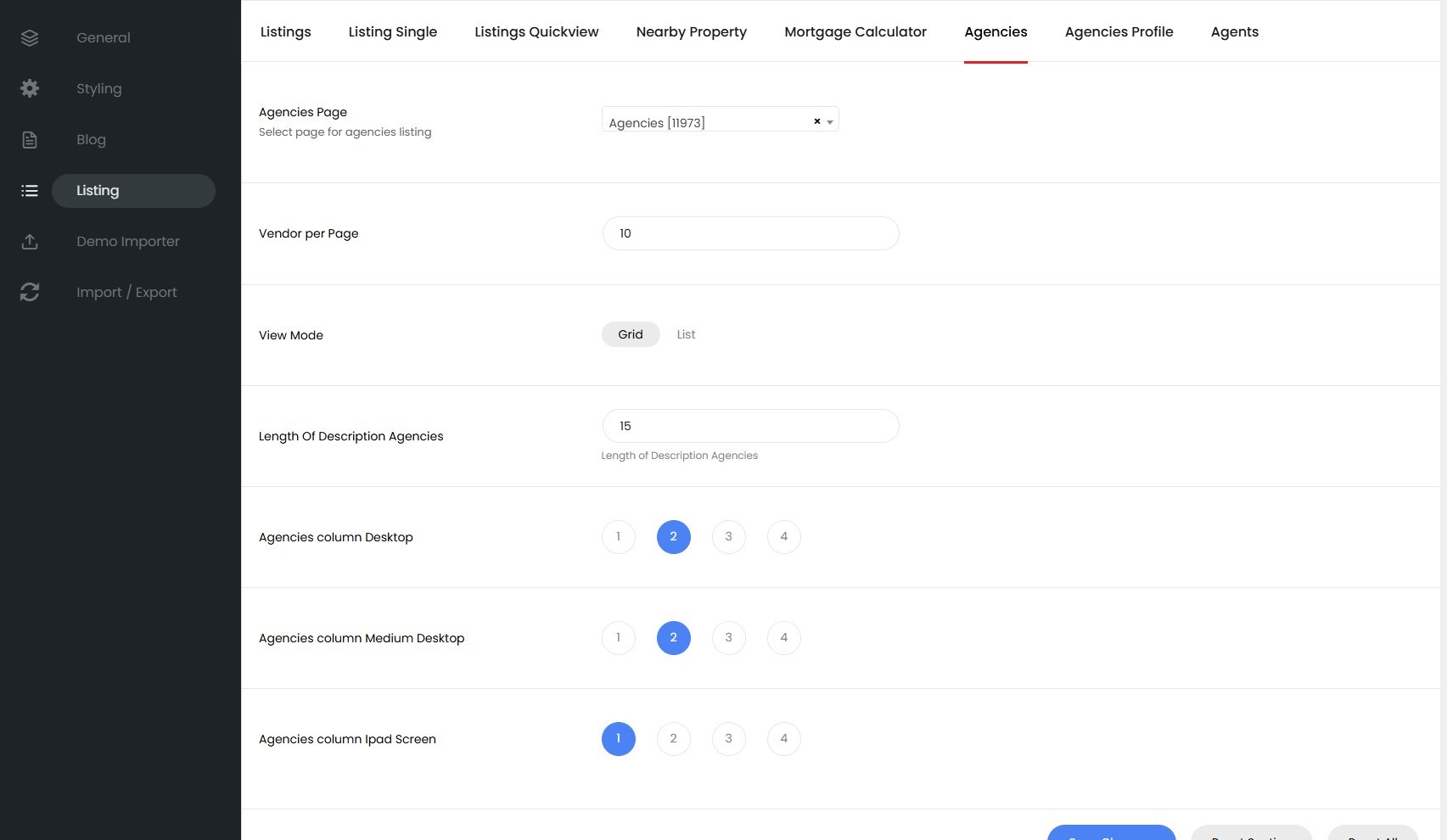
VI. Agencies
Go to Theme Options > Listing Click the section Agencies
You can configure and manage the functions on the Agencies page here.
Front End
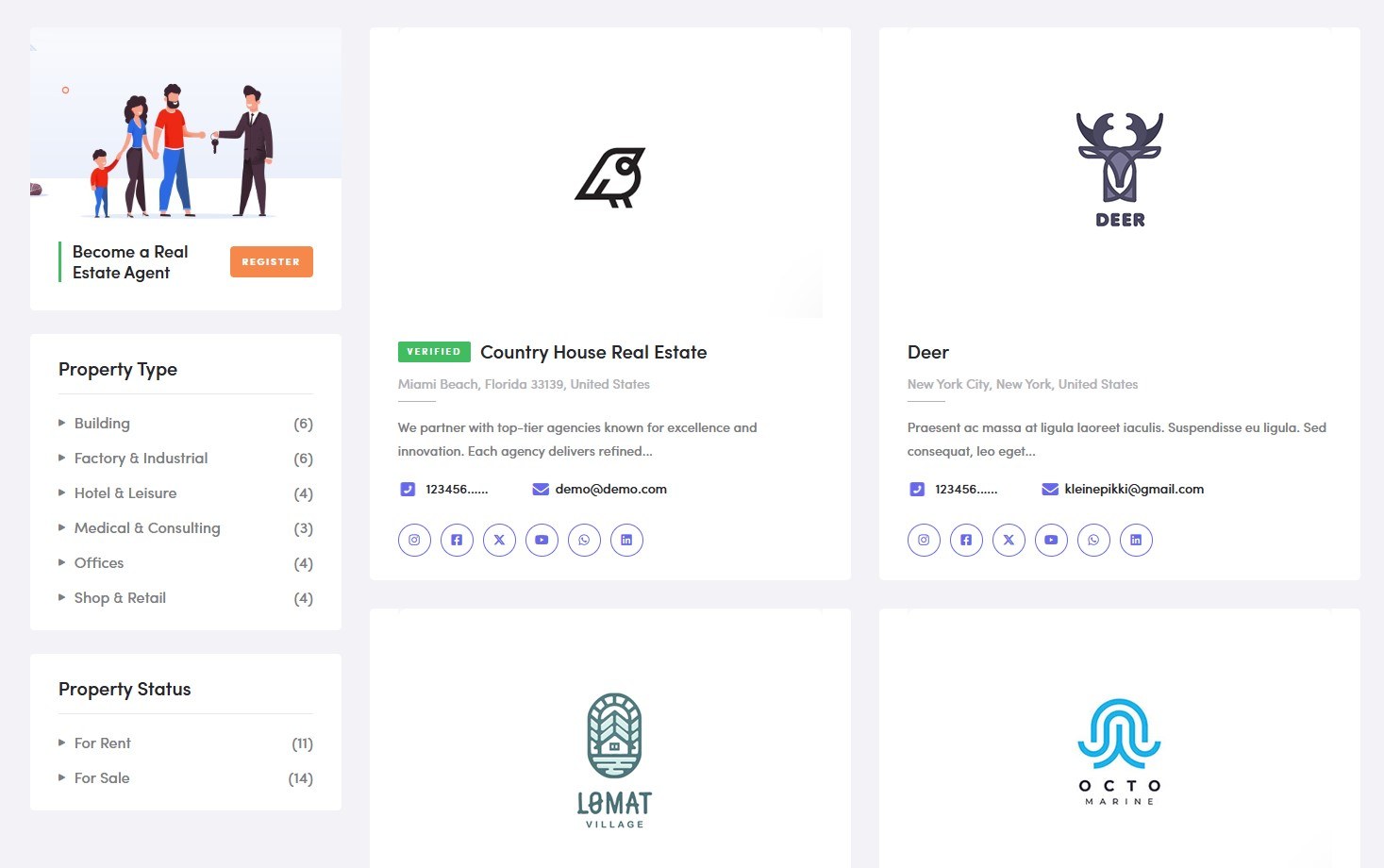
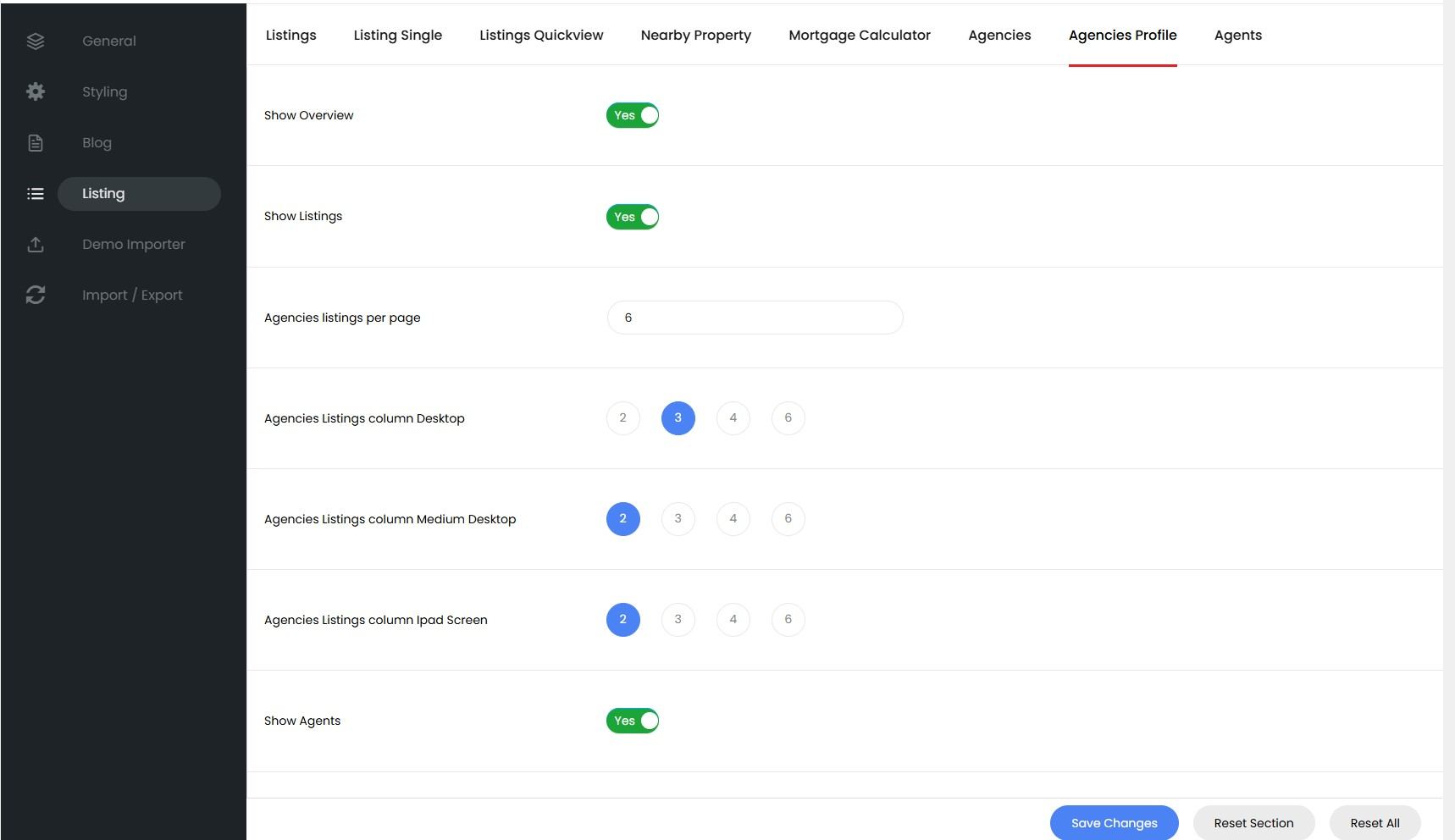
VII. Agencies Profile
Go to Theme Options > Listing Click the section Agencies Profile
You can configure and manage the functions on the Agency Detail page here.
Front End

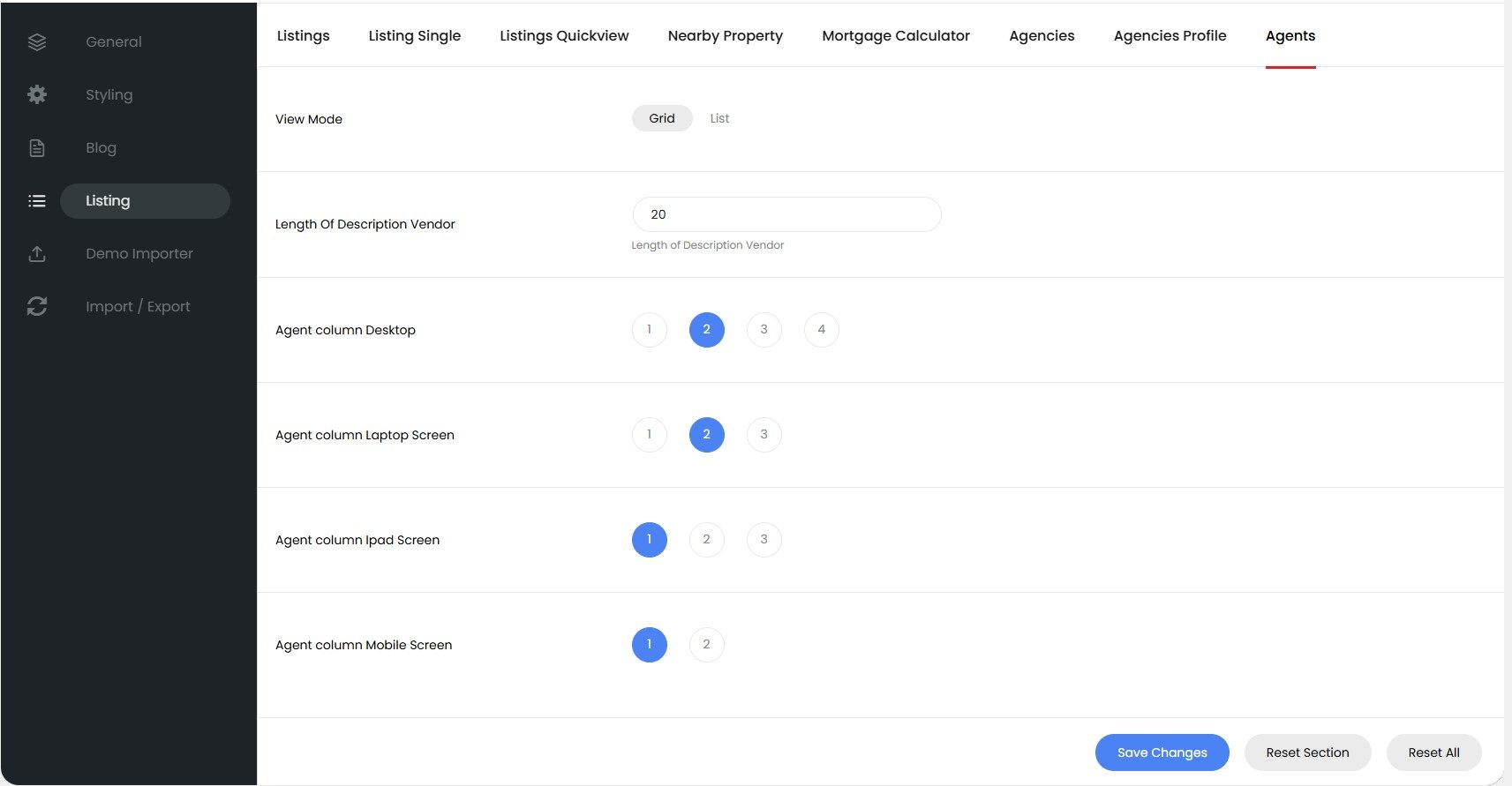
VIII. Agents
Go to Theme Options > Listing Click the section Agents
You can configure and manage the functions on the Agents page here.
Front End

Blog
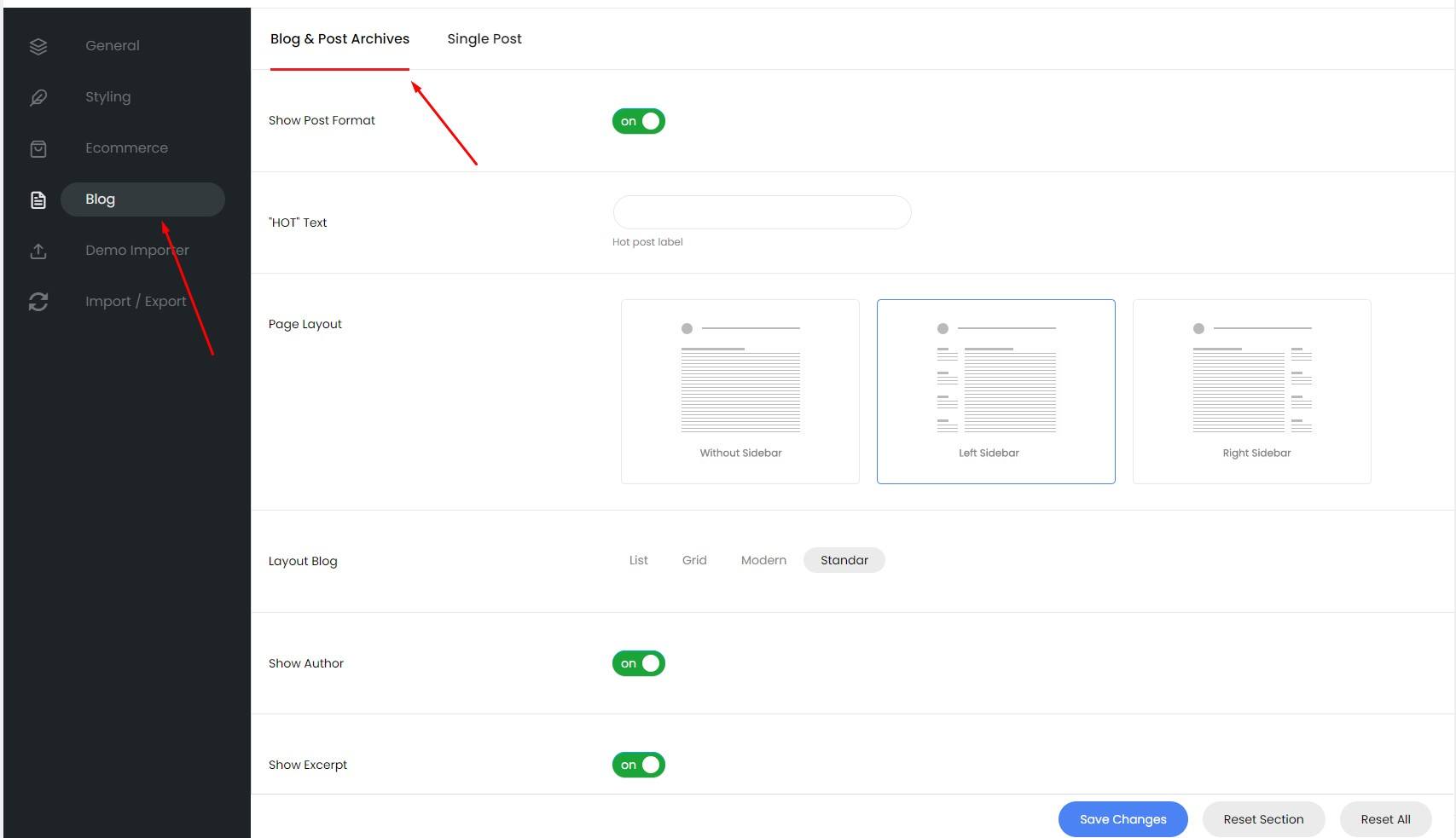
I. Blog & Post Archives
Go to Theme Options > Blog Click the section Blog & Post Archives
Configuration and options of the blog page
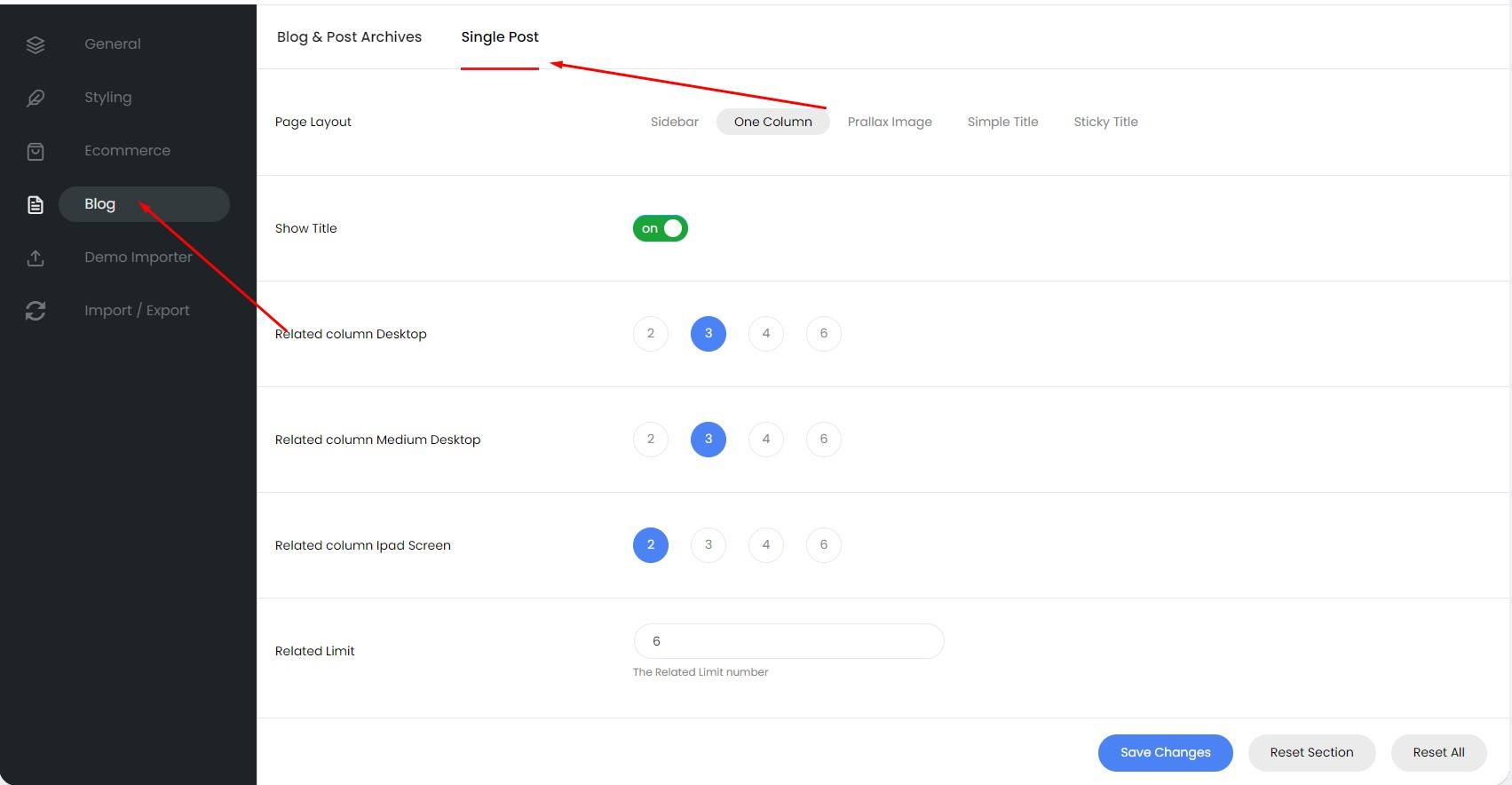
II. Single Post
Go to Theme Options > Blog Click the section Single Post
Configuration and options of the Single Post
Plugins
Install plugins
Go to Appearance > Install Plugins
You will see the plugins that need to be installed
HivePress
I. Setting
Go to HivePress > Settings
Go to HivePress > Settings > Listings
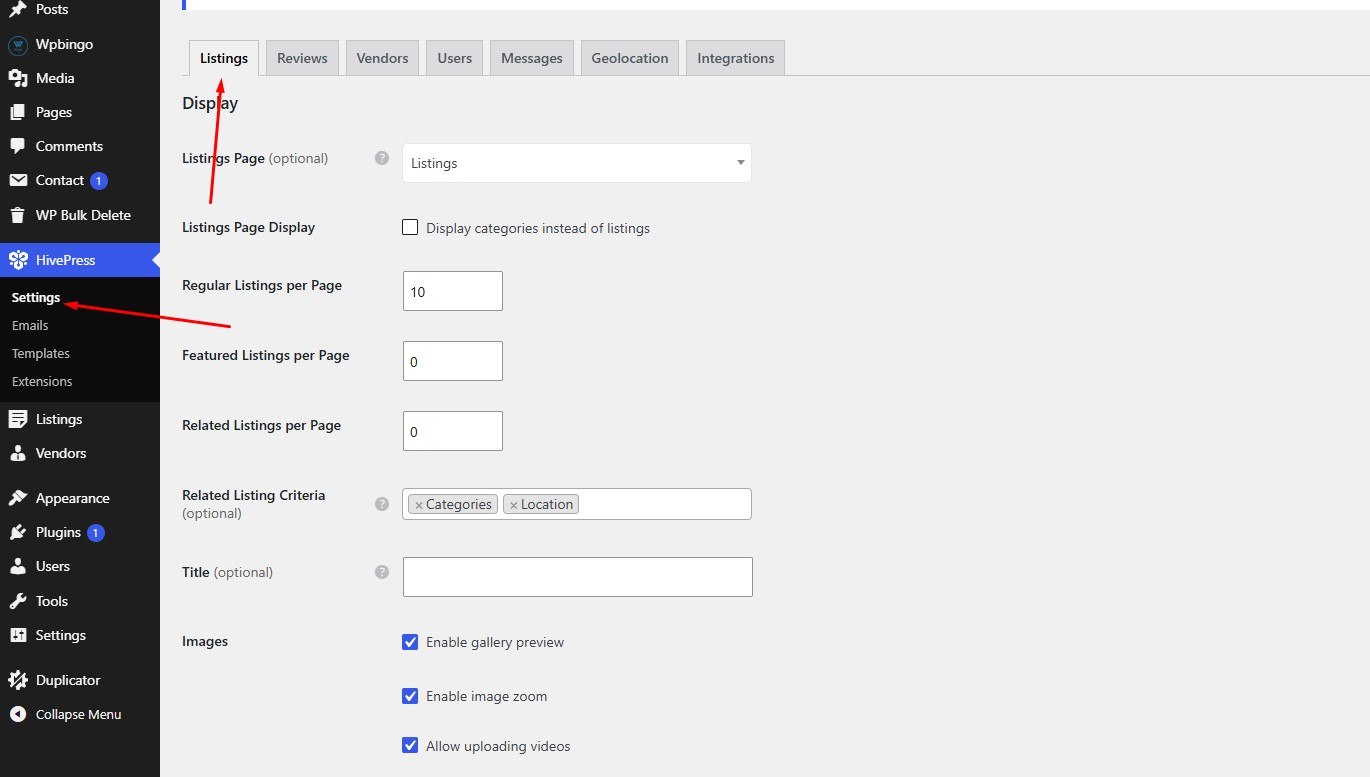

Go to HivePress > Settings > Reviews
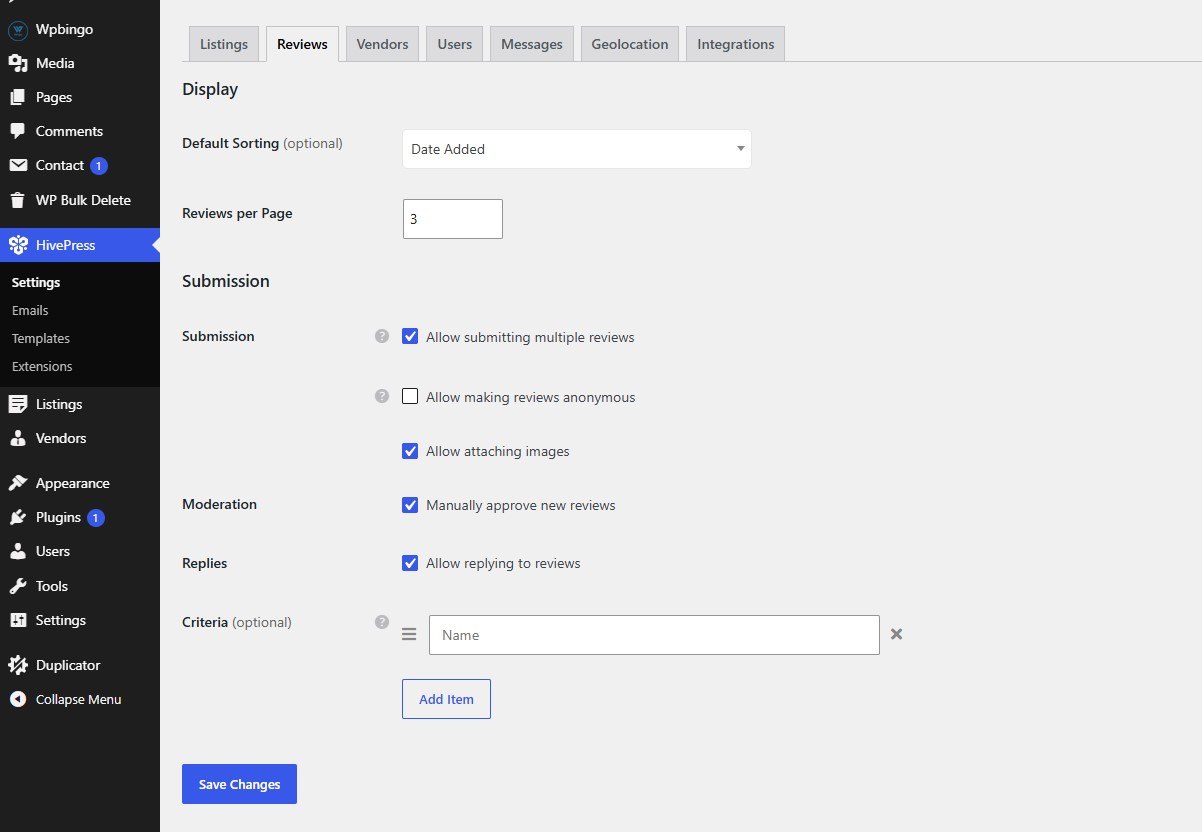
Go to HivePress > Settings > Vendors
Go to HivePress > Settings > User
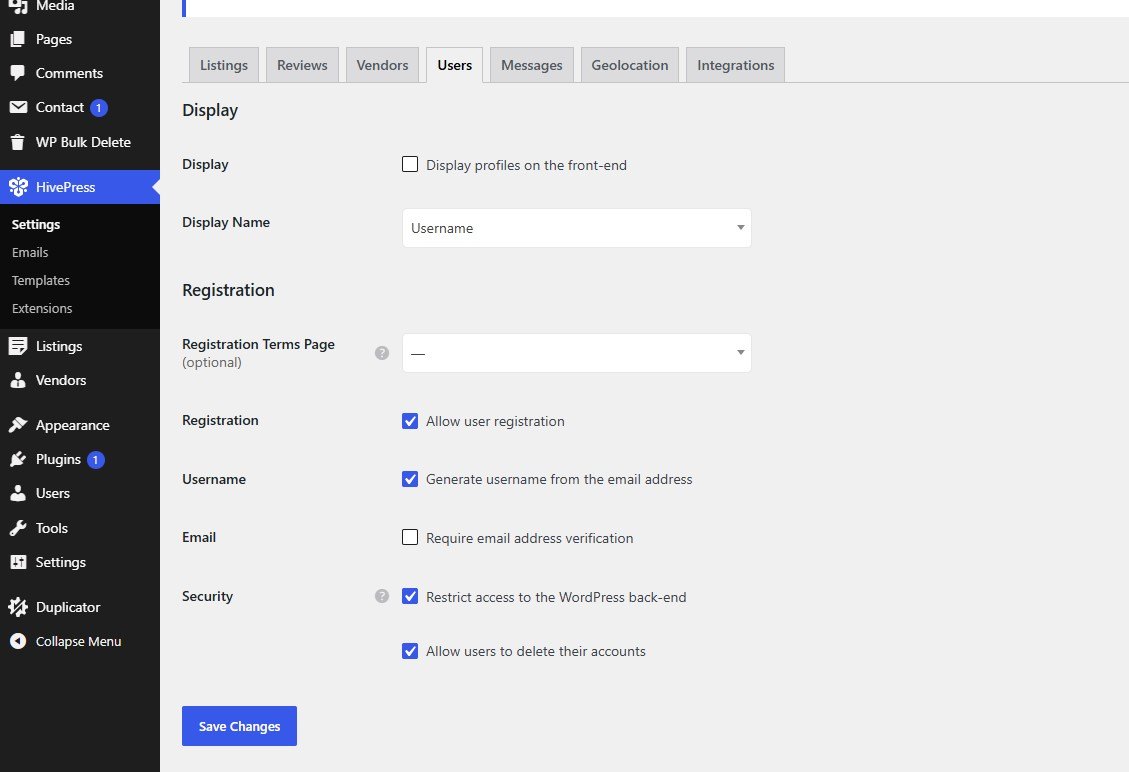
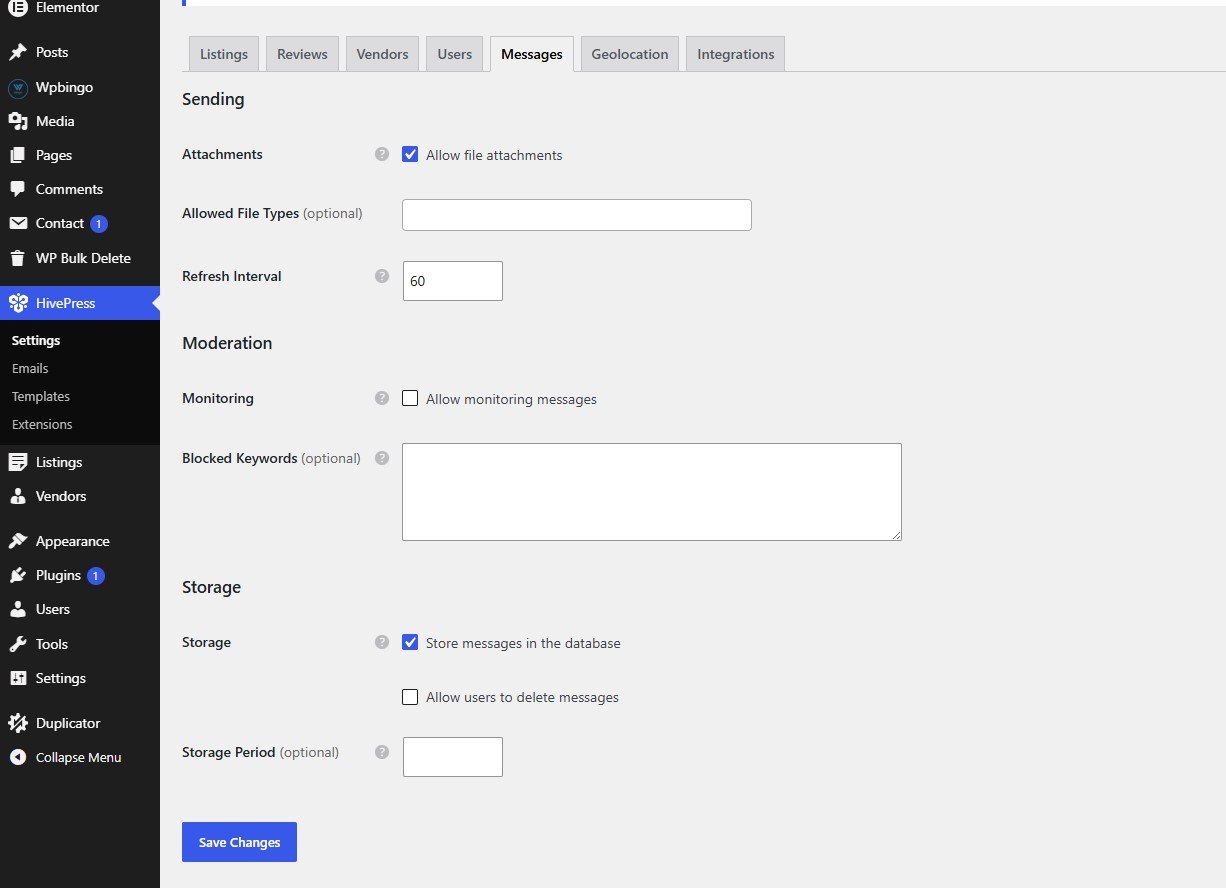
Go to HivePress > Settings > Messages
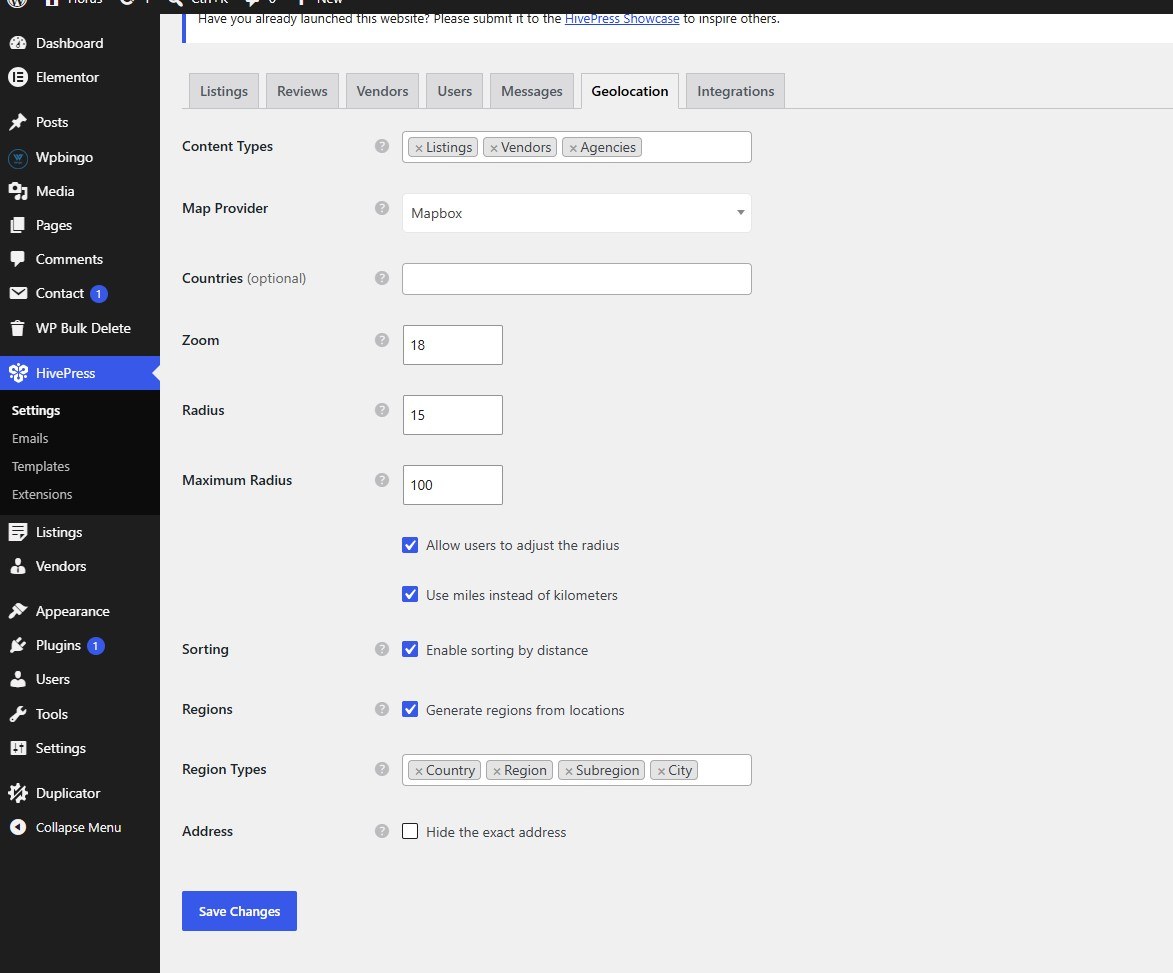
Go to HivePress > Settings > Geolocation
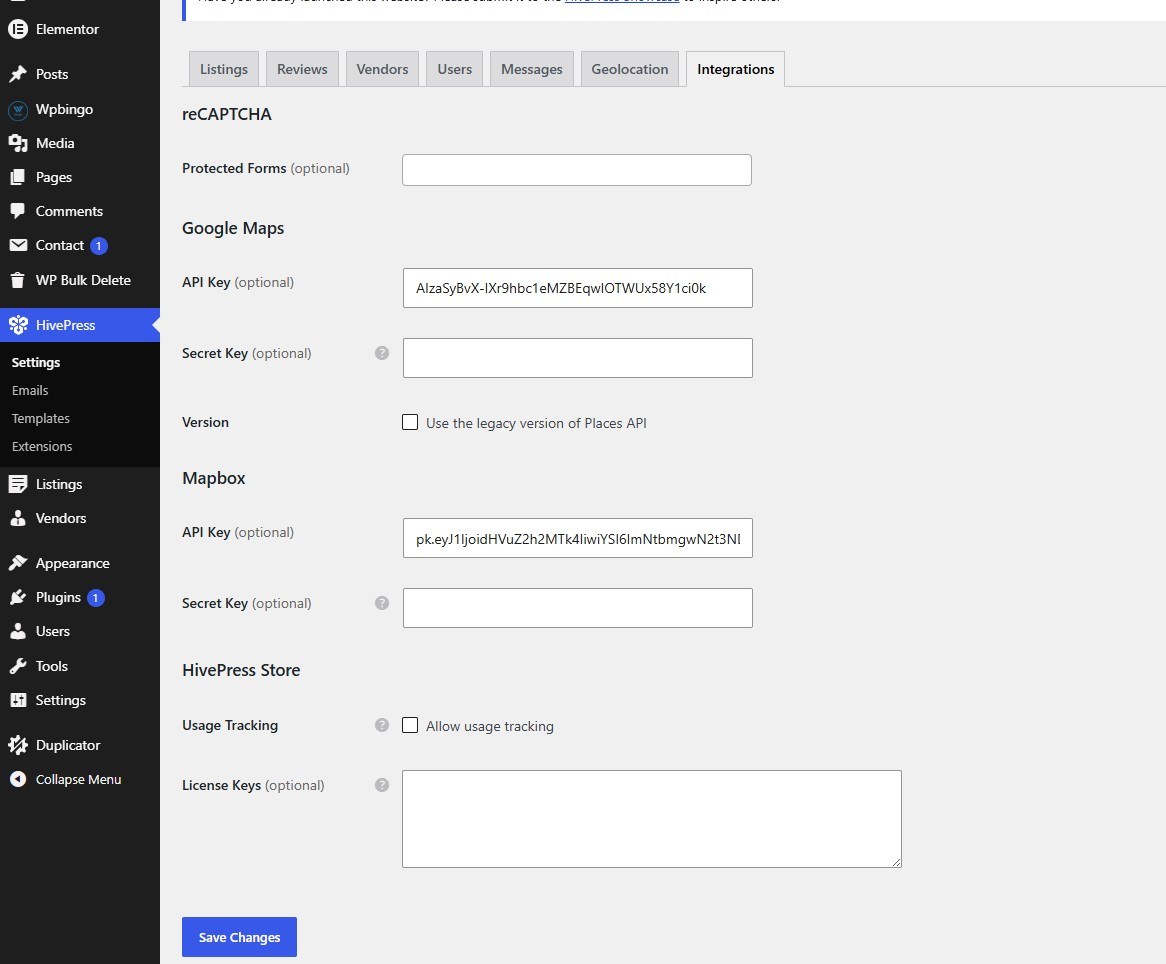
Go to HivePress > Settings > Integrations
II. Listing
Go to Listings > Attributes
You need to create attributes to display on your listing.
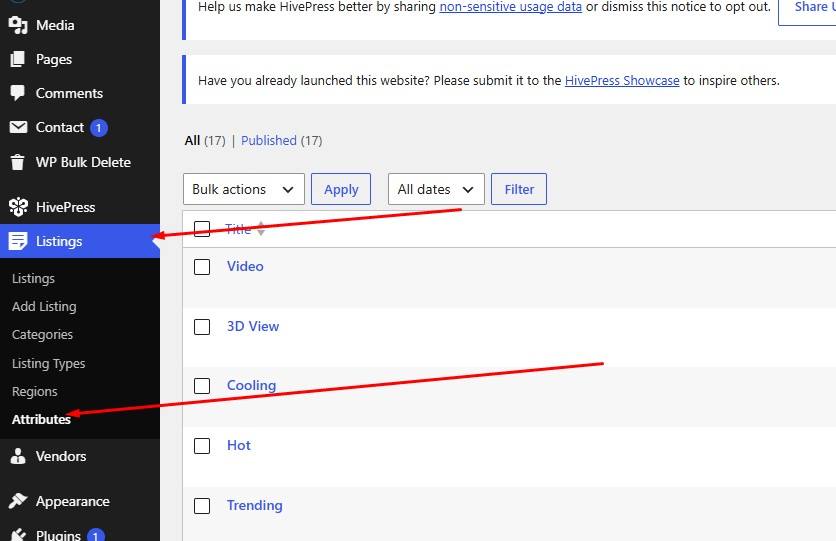
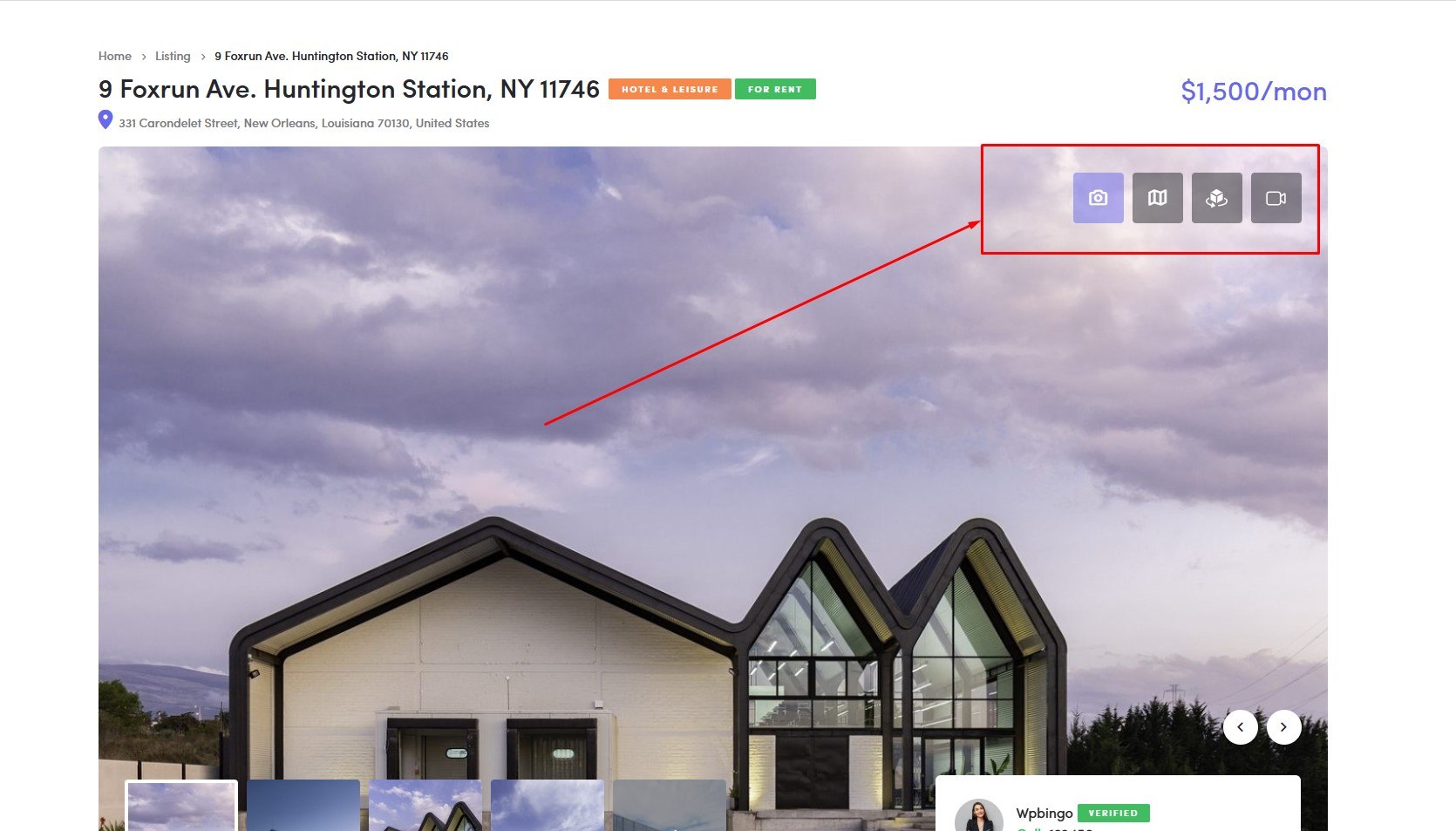
You can choose the area where you want to display the Attributes you want.

Select Quickview if you want that attribute to be displayed in Quickview.

Select Listing Card if you want that attribute to be displayed in Listing Card.

Select Single Content if you want that attribute to be displayed in Single Content.

Select Tab Single Image if you want that attribute to be displayed in Tab Single Image.
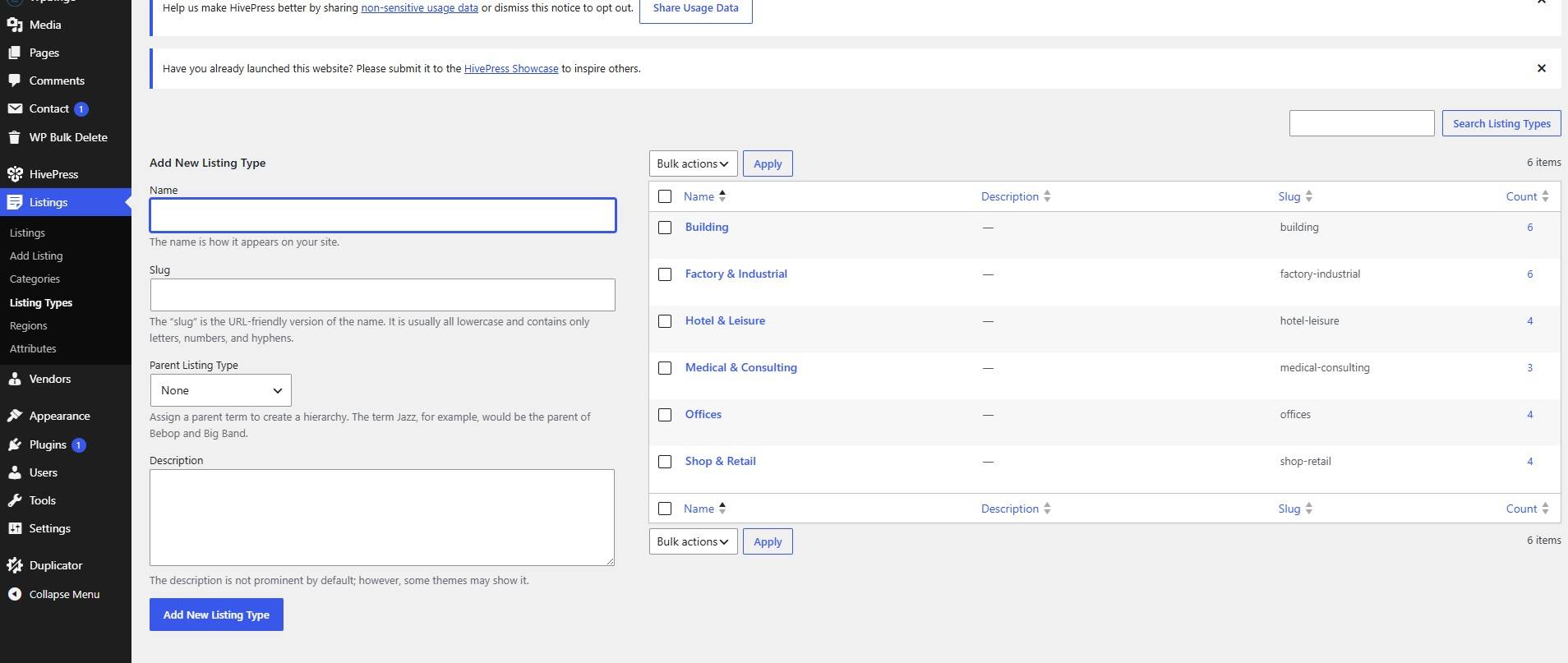
Go to Listings > Category
Create categories to manage listings.

Go to Listings > Listing Type
Create Listing Types to categorize listings.
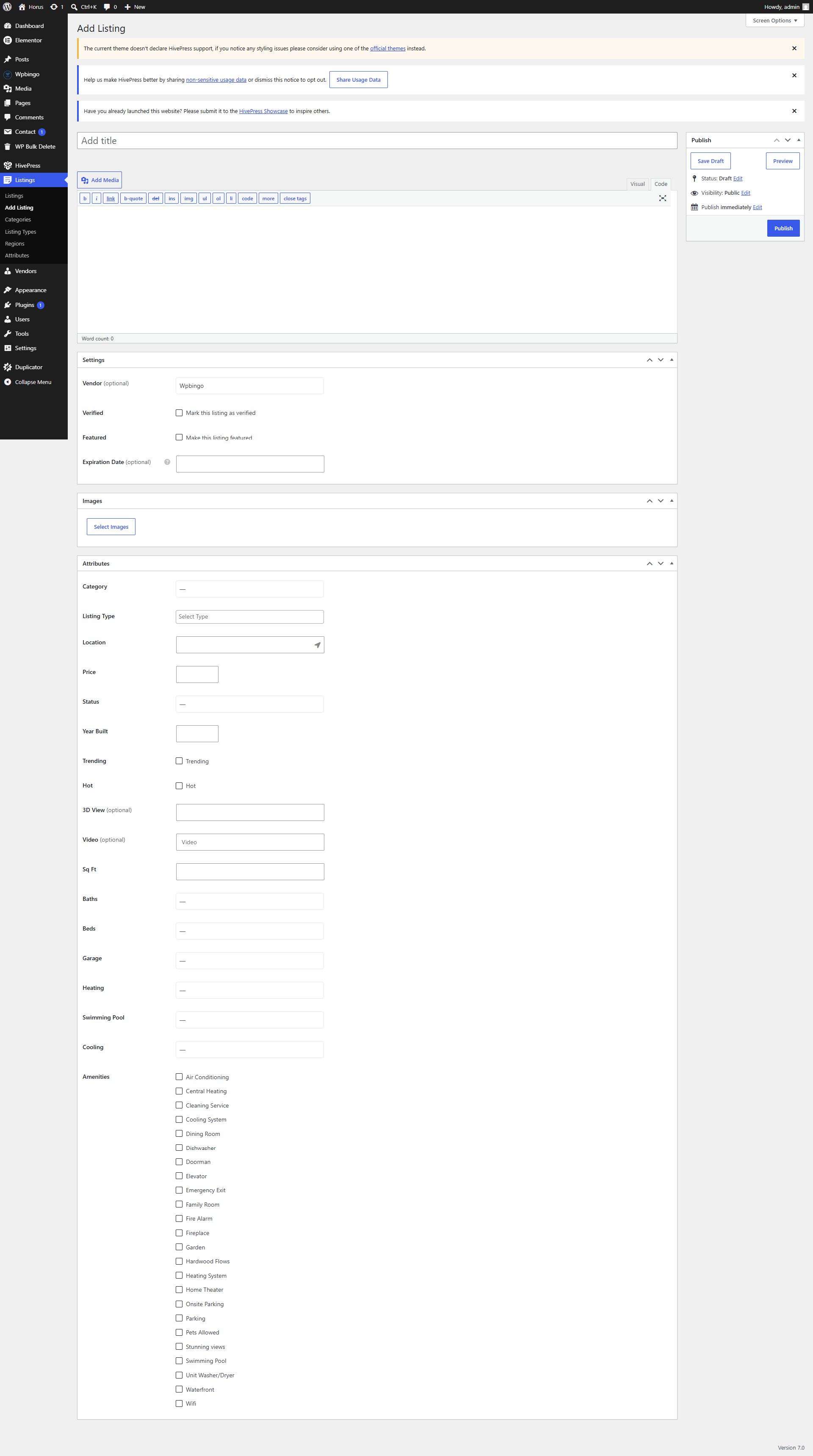
Go to Listings > Add Listing
After you have created all the data above, you can create the listing.
III. Vendors
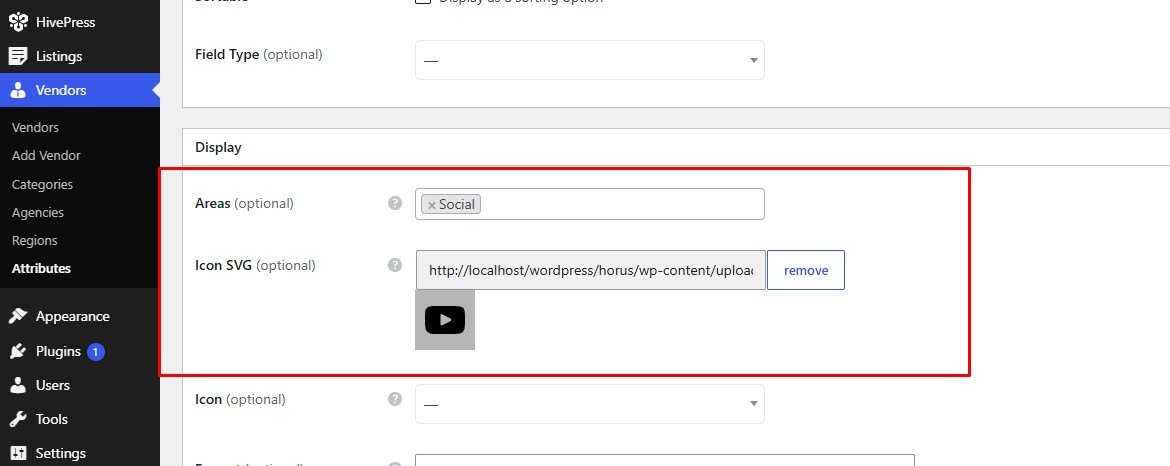
Go to Vendors > Attributes
You need to create attributes to display on your Vendors.

Select "social" if you want this attribute to be the vendor's social media links.
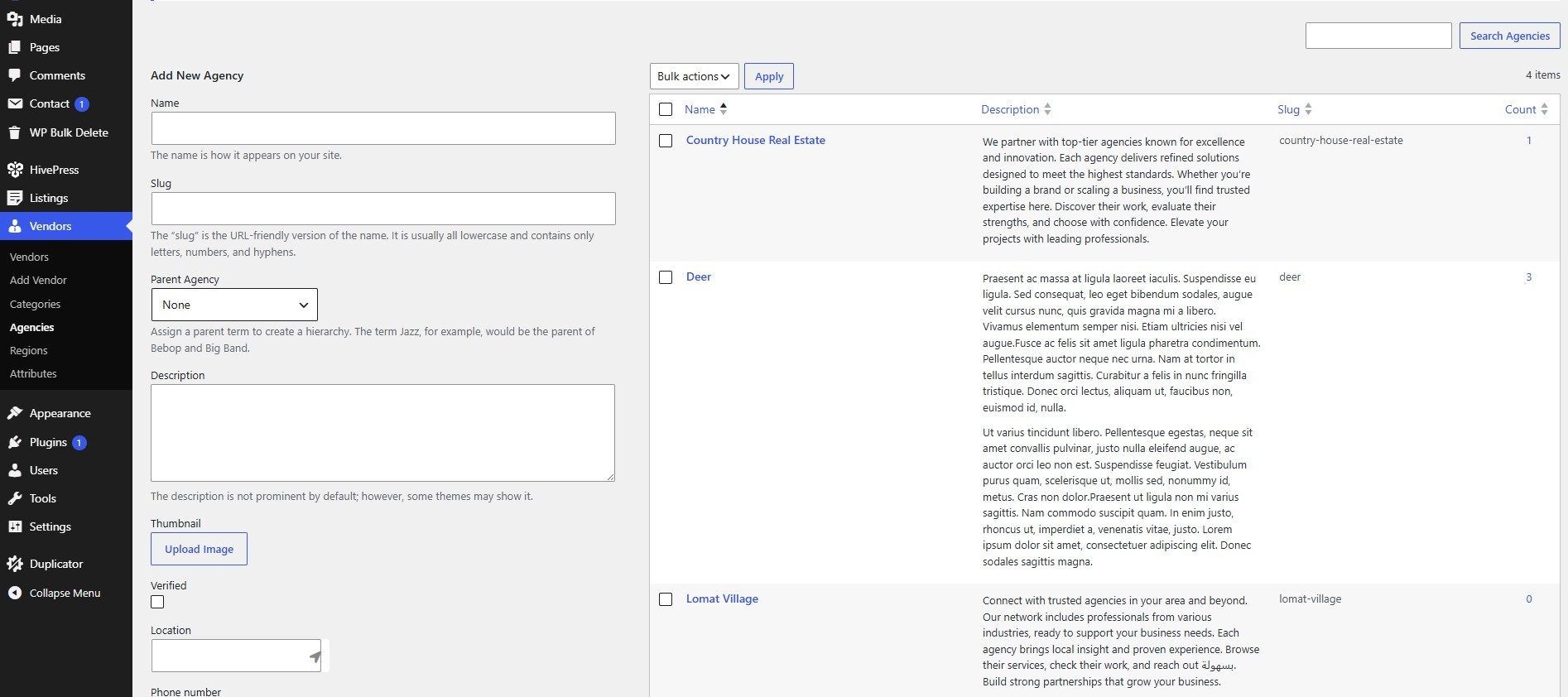
Go to Vendors > Agencies
Create Agency to manage Vendors.
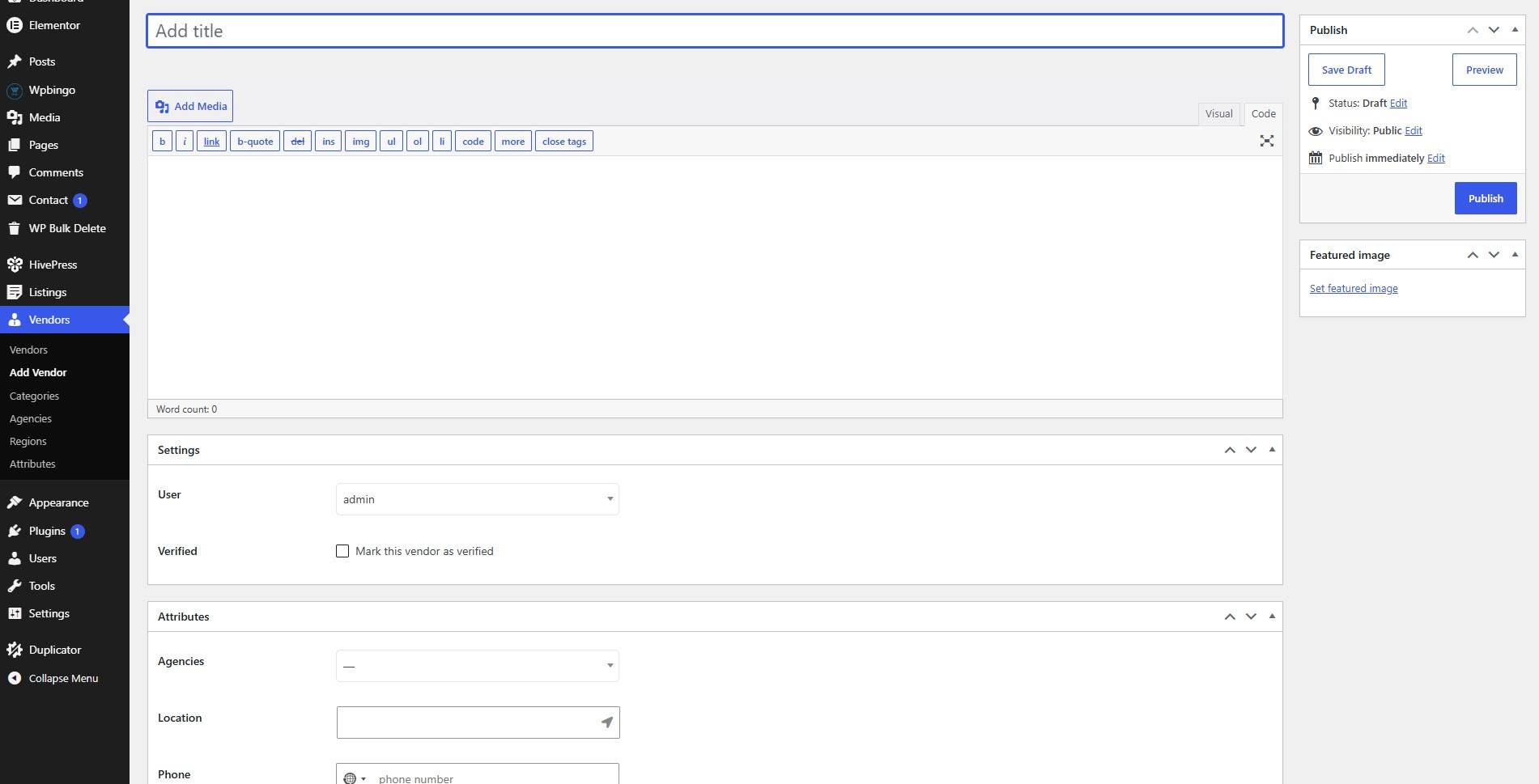
Go to Vendors > Add Vendors
After you have created all the data above, you can create the Vendor.
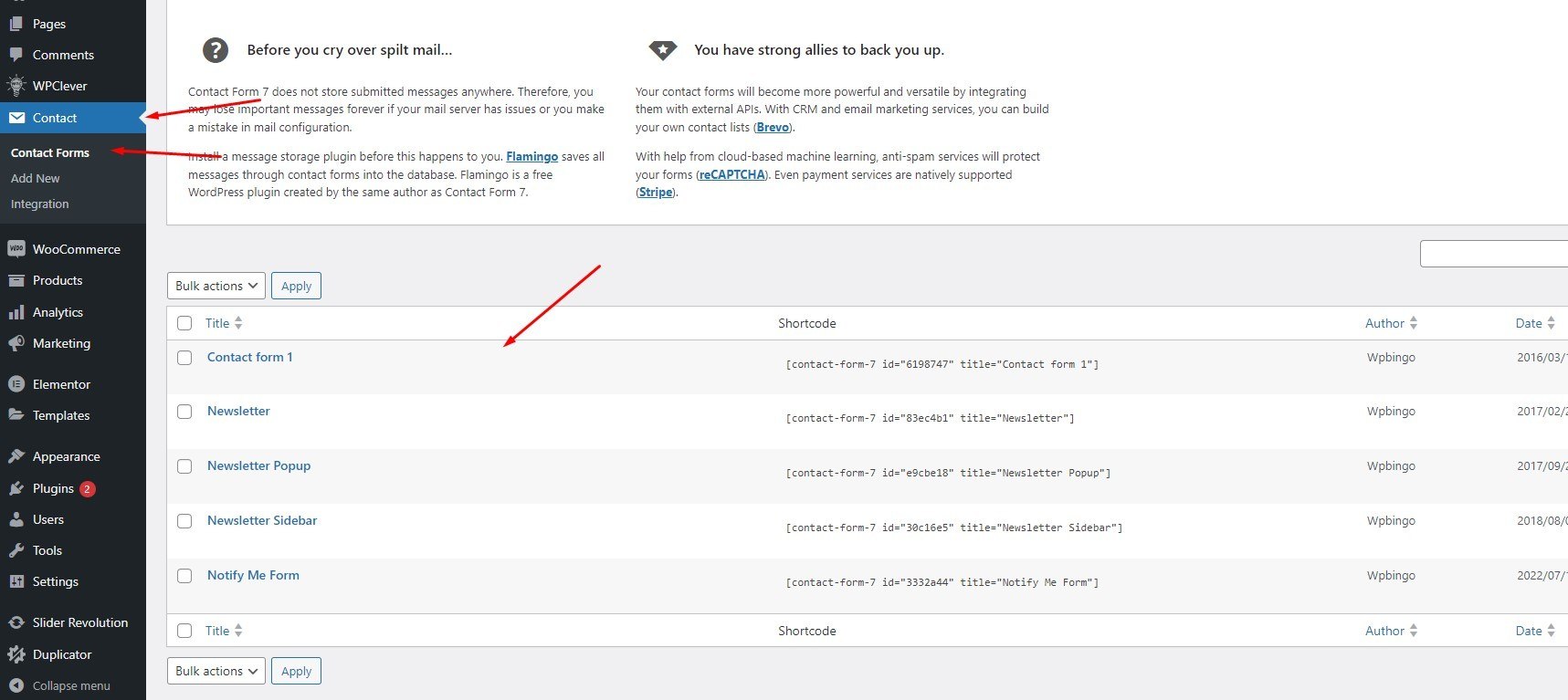
Contact Forms
Go to Contact > Contact Forms
Here you will see the forms used in the page. You can change its content here. However, you should only change the text, not the html because it will lose the style of the website
Blog & Posts
Once you’re on the Add New Post screen, you will then be able to set a title for the blog post, add the body content, and also provide all the meta information such as extra details and media. In the blog meta you can set the image for the thumbnail, and also the media type for the detail page.
You can use the Visual Composer to create the content of the item, which effectively allows you to have limitless possibilities for what you can display, and also how you can display it.For more detail, please visit: http://codex.wordpress.org/Writing_Posts
Translation
Setup Language
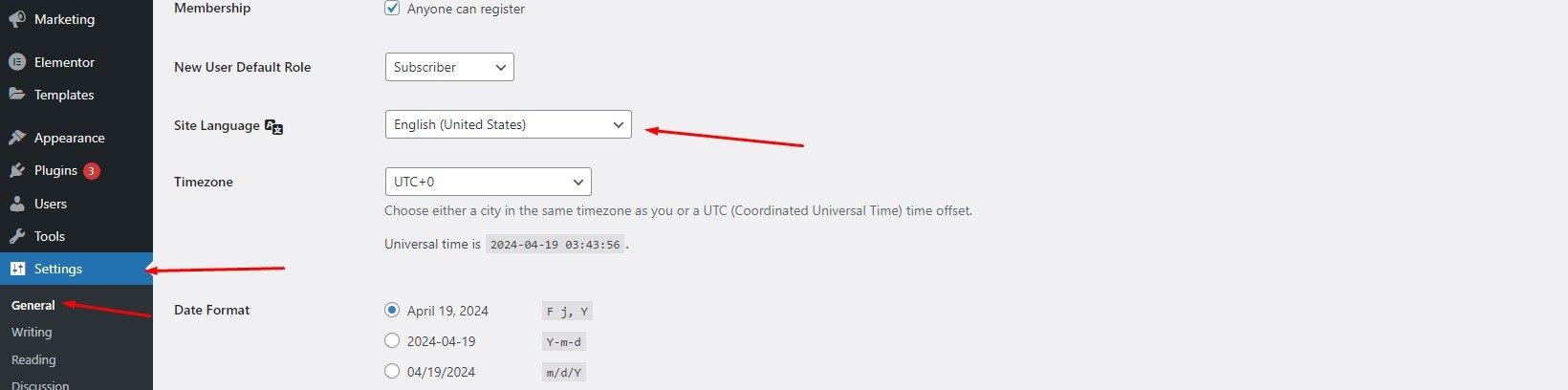
WordPress makes it super-easy to change the language on your website. Simply go to Settings > General in your WordPress dashboard, and scroll down to the bottom of the page. There you will see the option to select Site language.
Translate Your Website
In order to translate your website completele, there are things you need to translate:
Activated theme - In case you are using a child theme, the theme you need to translate must be the parent theme. For example, if you are using Horus Child theme, the child theme of Horus, you must translate Horus.
Installed plugins - With included plugins in Horus, you must translate them manually. With plugins from WordPress.org, you need to check if they are translated into your language or not. If they are not translated, you need to translate them manually too.
Some Options - With some options of theme, plugins, you must edit it to change the default value. For example, the plugin Mailchimp For WP will create a default form. You must edit it to change some text strings like "Email", "Name",...
I. Using Loco Translate Plugin
The easiest way to translate your theme is using the Loco Translate plugin.
Go to Plugins > Add New
Search for plugin “Loco Translate”
Install and Activate the plugin.
After Activation locate Loco Translate
Loco Translate plugin has it own a short tutorial for beginner. Please take a look at it here.
II. Using Poedit
There are a few different options for translating WordPress, as outlined in the WordPress Codex. For this tutorial, we’re going to use Poedit, an easy to use open source program available for Mac OS X, Windows and UNIX/Linux.
Information
Thank you for reading!
We hope you can create the best website with our themes.
- Email: [email protected]
- Facebook: Wpbingo